Generates gorgeous HTML reports from mochawesome reporter.


Npm Package Weekly Downloads Trend
Cumulative GitHub Star Trend
Stat Detail


Popular Comparisons
README for mochawesome-report-generator
mochawesome-report-generator (marge)

marge (mochawesome-report-generator) is the counterpart to mochawesome, a custom reporter for use with the Javascript testing framework, mocha. Marge takes the JSON output from mochawesome and generates a full fledged HTML/CSS report that helps visualize your test suites.
Features
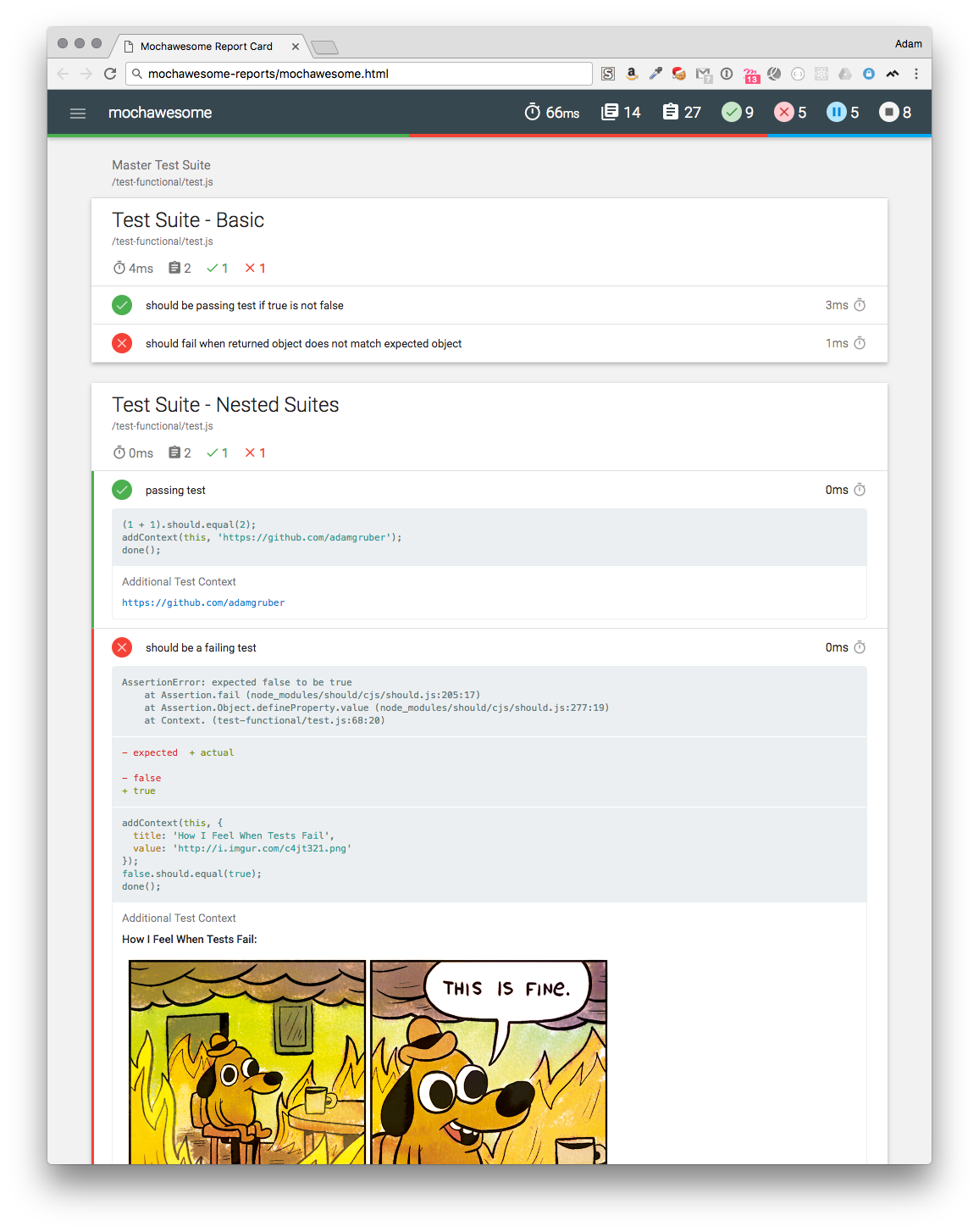
- Simple, clean, and modern design
- Support for test and suite nesting
- Displays before and after hooks
- Review test code inline
- Stack trace for failed tests
- Support for adding context information to tests
- Filters to display only the tests you want
- Responsive and mobile-friendly
- Offline viewing
- CLI for generating reports independent of mochawesome
Usage with mochawesome
- Add Mochawesome to your project:
npm install --save-dev mochawesome
- Tell mocha to use the Mochawesome reporter:
mocha testfile.js --reporter mochawesome
- If using mocha programatically:
var mocha = new Mocha({
  reporter: 'mochawesome'
});
CLI Usage
Install mochawesome-report-generator package
npm install -g mochawesome-report-generator
Run the command
marge [options] data_file [data_file2 ...]
Output
marge generates the following inside your project directory:
mochawesome-report/
├── assets
│   ├── app.css
│   ├── app.js
│   ├── MaterialIcons-Regular.woff
│   ├── MaterialIcons-Regular.woff2
│   ├── roboto-light-webfont.woff
│   ├── roboto-light-webfont.woff2
│   ├── roboto-medium-webfont.woff
│   ├── roboto-medium-webfont.woff2
│   ├── roboto-regular-webfont.woff
│   └── roboto-regular-webfont.woff2
└── mochawesome.html
Options
CLI Flags
marge can be configured via the following command line flags:
| Flag | Type | Default | Description |
|---|---|---|---|
| -f, --reportFilename | string | mochawesome | Filename of saved report. See notes for available token replacements. |
| -o, --reportDir | string | [cwd]/mochawesome-report | Path to save report |
| -t, --reportTitle | string | mochawesome | Report title |
| -p, --reportPageTitle | string | mochawesome-report | Browser title |
| -i, --inline | boolean | false | Inline report assets (scripts, styles) |
| --cdn | boolean | false | Load report assets via CDN (unpkg.com) |
| --assetsDir | string | [cwd]/mochawesome-report/assets | Path to save report assets (js/css) |
| --charts | boolean | false | Display Suite charts |
| --code | boolean | true | Display test code |
| --autoOpen | boolean | false | Automatically open the report |
| --overwrite | boolean | true | Overwrite existing report files. See notes. |
| --timestamp, --ts | string | Append timestamp in specified format to report filename. See notes. | |
| --showPassed | boolean | true | Set initial state of "Show Passed" filter |
| --showFailed | boolean | true | Set initial state of "Show Failed" filter |
| --showPending | boolean | true | Set initial state of "Show Pending" filter |
| --showSkipped | boolean | false | Set initial state of "Show Skipped" filter |
| --showHooks | string | failed | Set the default display mode for hooks • failed: show only failed hooks• always: show all hooks• never: hide all hooks• context: show only hooks that have context |
| --saveJson | boolean | false | Should report data be saved to JSON file |
| --saveHtml | boolean | true | Should report be saved to HTML file |
| --dev | boolean | false | Enable dev mode (requires local webpack dev server) |
| -h, --help | Show CLI help |
Boolean options can be negated by adding --no before the option. For example: --no-code would set code to false.
reportFilename replacement tokens
Using the following tokens it is possible to dynamically alter the filename of the generated report.
- [name] will be replaced with the spec filename when possible.
- [status] will be replaced with the status (pass/fail) of the test run.
- [datetime] will be replaced with a timestamp. The format can be - specified using the
timestampoption.
For example, given the spec cypress/integration/sample.spec.js and the following config:
{
  reporter: "mochawesome",
  reporterOptions: {
    reportFilename: "[status]_[datetime]-[name]-report",
    timestamp: "longDate"
  }
}
The resulting report file will be named pass_February_23_2022-sample-report.html
Note: The [name] replacement only occurs when mocha is running one spec file per process and outputting a separate report for each spec. The most common use-case is with Cypress.
overwrite
By default, report files are overwritten by subsequent report generation. Passing --overwrite=false will not replace existing files. Instead, if a duplicate filename is found, the report will be saved with a counter digit added to the filename. (ie. mochawesome_001.html).
Note: overwrite will always be false when passing multiple files or using the timestamp option.
timestamp
The timestamp option can be used to append a timestamp to the report filename. It uses dateformat to parse format strings so you can pass any valid string that dateformat accepts with a few exceptions. In order to produce valid filenames, the following
replacements are made:
| Characters | Replacement | Example | Output |
|---|---|---|---|
| spaces, commas | underscore | Wed March 29, 2017 | Wed_March_29_2017 |
| slashes | hyphen | 3/29/2017 | 3-29-2017 |
| colons | null | 17:46:21 | 174621 |
If you pass true as the format string, it will default to isoDateTime.
mochawesome reporter-options
The above CLI flags can be used as reporter-options when using the mochawesome reporter.
Use them in a .mocharc.js file:
module.exports = {
    reporter: 'node_modules/mochawesome',
    'reporter-option': [
        'overwrite=true',
        'reportTitle=My\ Custom\ Title',
        'showPassed=false'
    ],
};
or as an object when using mocha programmatically:
const mocha = new Mocha({
  reporter: 'mochawesome',
  reporterOptions: {
    overwrite: true,
    reportTitle: 'My Custom Title',
    showPassed: false
  }
});
Development
To develop locally, clone the repo and install dependencies. In order to test end-to-end you must also clone mochawesome into a directory at the same level as this repo.
You can start the dev server with npm run devserver. If you are working on the CLI, use npm run dev:cli to watch for changes and rebuild.
Running Tests
Unit Tests
To run unit tests, simply use npm run test. You can also run a single unit test with npm run test:single path/to/test.js.
Functional Tests
Functional tests allow you to run real-world test cases in order to debug the output report. First, start up the dev server in one terminal window with npm run devserver. Then, in another window, run the tests with npm run test:functional. This will generate a report that you can open in the browser and debug.
If you want to run a specific folder of functional tests:
npm run test:functional path/to/tests
Or if you want to run a single test:
npm run test:functional path/to/test.js
Or mix and match:
npm run test:functional path/to/some/tests path/to/another/test.js