React アプリケーションにおける主要なチャートライブラリの比較と選定
chart.js、react-apexcharts、react-chartjs-2、recharts は、Web アプリケーションでデータを視覚化するための代表的なライブラリです。chart.js はキャンバスベースの描画エンジンであり、react-chartjs-2 はそれを React で使うための公式ラッパーです。一方、recharts は React コンポーネントとして宣言的にチャートを描画する SVG ベースのライブラリで、react-apexcharts は高機能な ApexCharts の React 版です。これらはそれぞれ描画方式や React との親和性が異なり、プロジェクトの要件に応じて適切な選択が必要です。
npmのダウンロードトレンド
GitHub Starsランキング
統計詳細


React 用チャートライブラリ徹底比較:描画エンジンと開発体験の違い
chart.js、react-apexcharts、react-chartjs-2、recharts は、いずれもデータ可視化の強力なツールですが、内部構造と React との付き合い方が大きく異なります。単に「グラフを描く」だけでなく、描画方式(Canvas vs SVG)、設定方法、そしてパフォーマンス特性を理解することが、堅牢なアーキテクチャ選定には不可欠です。
🎨 描画エンジン:Canvas vs SVG
チャートライブラリを選ぶ際、最も根本的な違いは描画エンジンです。これがパフォーマンスとカスタマイズ性に直結します。
chart.js と react-chartjs-2 は Canvas を使用します。
- 像素ベースで描画するため、データポイントが数千〜数万あっても比較的軽快に動作します。
- 一方、CSS でのスタイル制御が効かず、描画設定はすべて JavaScript の設定オブジェクトで行う必要があります。
// chart.js (Vanilla JS example)
const ctx = document.getElementById('myChart');
new Chart(ctx, {
  type: 'bar',
  data: { /* ... */ },
  options: { /* ... */ }
});

// react-chartjs-2 (React Component)
import { Bar } from 'react-chartjs-2';
<Bar data={chartData} options={chartOptions} />
recharts は SVG を使用します。
- 各要素(線、軸、点)が DOM ノードとして存在するため、CSS や React のイベントハンドラで直接制御できます。
- データ量が増えると DOM 要素が膨れ上がり、パフォーマンスが低下する可能性があります。
// recharts
import { BarChart, Bar, XAxis, YAxis } from 'recharts';
<BarChart width={500} height={300} data={data}>
  <XAxis dataKey="name" />
  <YAxis />
  <Bar dataKey="uv" fill="#8884d8" />
</BarChart>
react-apexcharts も主に SVG を使用しますが、一部に Canvas を利用する機能もあります。
- 高機能なインタラクション(ズーム、パン)が最初から備わっています。
- 設定が複雑になりがちですが、リッチな UI を素早く実装できます。
// react-apexcharts
import ReactApexChart from 'react-apexcharts';
<ReactApexChart
  options={chartOptions}
  series={seriesData}
  type="bar"
  width={500}
/>
⚛️ React との統合方法:ラッパー vs ネイティブコンポーネント
React プロジェクトにおいて、ライブラリがどのようにコンポーネントとして振る舞うかは、開発体験に大きな影響を与えます。
react-chartjs-2 は chart.js の ラッパー です。
- 内部で Canvas 要素を管理し、props の変更を検知してチャートインスタンスを更新します。
- React の状態管理と同期させるために、データ構造を
chart.js形式に整形する手間がかかります。
// react-chartjs-2
const data = {
  labels: ['A', 'B', 'C'],
  datasets: [{ label: 'Sales', data: [10, 20, 30] }]
};
<Bar data={data} />
recharts は ネイティブな React コンポーネント です。
<LineChart>や<Bar />といったコンポーネントを組み合わせるため、React らしい記述になります。- データの加工や条件付き描画が、他の UI コンポーネントと同じ感覚で書けます。
// recharts
<LineChart data={data}>
  <Line dataKey="value" stroke="#8884d8" />
  {showTooltip && <Tooltip />}
</LineChart>
react-apexcharts も ラッパー です。
- 設定オブジェクト (
options) とデータ系列 (series) を props として渡します。 - 設定項目が非常に多く、ドキュメントを読み込むコストが高いですが、機能は豊富です。
// react-apexcharts
const options = { chart: { type: 'bar' }, xaxis: { categories: [...] } };
const series = [{ name: 'Sales', data: [10, 20, 30] }];
<ReactApexChart options={options} series={series} type="bar" />
chart.js (コアライブラリ) は フレームワーク非依存 です。
- React 以外でも使えますが、React 内で使う場合は
useRefとuseEffectで手動管理が必要になり、コードが煩雑になります。
// chart.js (in React useEffect)
useEffect(() => {
  const ctx = canvasRef.current.getContext('2d');
  const chart = new Chart(ctx, { type: 'line', data: data });
  return () => chart.destroy();
}, [data]);
🛠️ 設定とカスタマイズ性
チャートの見た目や挙動を調整する際のアプローチも異なります。
recharts は コンポーネントベース の設定です。
- 軸やツールチップもコンポーネントとして追加・削除できます。
- CSS クラスやインラインスタイルで細かく装飾可能です。
// recharts: Custom tooltip component
<Tooltip content={<CustomTooltip />} />
chart.js / react-chartjs-2 は 設定オブジェクト ベースです。
optionsオブジェクト内でネスト深く設定を記述します。- 複雑なカスタマイズにはプラグインシステムの理解が必要です。
// react-chartjs-2: Options object
const options = {
  scales: { y: { beginAtZero: true } },
  plugins: { legend: { position: 'top' } }
};
react-apexcharts も 設定オブジェクト ベースです。
- 非常に詳細な設定が可能ですが、オブジェクトが巨大化しやすい傾向があります。
// react-apexcharts: Detailed options
const options = {
  chart: { animations: { enabled: true } },
  stroke: { curve: 'smooth', width: 2 }
};
🚀 パフォーマンスとデータ量
扱うデータサイズによって、適したライブラリは明確に分かれます。
chart.js/react-chartjs-2: Canvas 描画のため、数千件のデータポイントでも比較的安定して動作します。リアルタイム更新が必要なモニタリング画面などに適しています。recharts: SVG 描画のため、データポイントが数百件を超えると描画が重くなることがあります。ダッシュボードや管理画面など、データ量が限定的な用途に向いています。react-apexcharts: 最適化されていますが、SVG ベースのインタラクションが多い場合、大量データではchart.jsに劣ることがあります。
📊 比較サマリー
| 特徴 | chart.js | react-chartjs-2 | recharts | react-apexcharts |
|---|---|---|---|---|
| 描画方式 | Canvas | Canvas | SVG | SVG / Canvas |
| React 統合 | 手動 (useEffect) | ラッパー | ネイティブコンポーネント | ラッパー |
| 設定方法 | オブジェクト | オブジェクト (props) | JSX / コンポーネント | オブジェクト (props) |
| カスタマイズ | 中 (プラグイン) | 中 (プラグイン) | 高 (CSS/React) | 高 (設定項目) |
| 大規模データ | ◎ | ◎ | △ | ○ |
| 学習コスト | 中 | 中 | 低 | 高 |
💡 最終的な選定ガイド
プロジェクトの要件に合わせて、以下のように選ぶと失敗が少ないです。
-
React らしい開発体験を最優先する場合
rechartsを選んでください。コンポーネントとして扱えるため、既存の React 知識がそのまま活かせます。カスタマイズ性も高く、管理画面や分析ダッシュボードに最適です。
-
パフォーマンスと標準的なチャートを求める場合
react-chartjs-2が無難な選択です。chart.jsの実績あるエンジンを使いつつ、React での扱いやすさを確保できます。データ更新頻度が高い場合に有利です。
-
リッチな機能とインタラクションが必要な場合
react-apexchartsを検討してください。ズームやパンなどの機能が最初から揃っており、設定の手間を惜しまなければ高機能なチャートが作れます。
-
React を使わない、または極限の軽量さが必要な場合
chart.js本体を使用します。ただし、React プロジェクトではreact-chartjs-2を使うのが一般的です。
どのライブラリも一長一短ありますが、**「データ量」と「カスタマイズの自由度」**のバランスを考えると、多くの現代的な React アプリケーションでは recharts か react-chartjs-2 のどちらかが最適解になることが多いでしょう。
選び方: react-apexcharts vs chart.js vs react-chartjs-2 vs recharts
- react-apexcharts:
最初から豊富な機能(ズーム、ツールチップ、アニメーション)を求め、設定オブジェクトで細かく制御したいダッシュボード開発に適しています。複雑な設定が必要ですが、視覚的な見栄えが良いチャートを素早く作れます。
- chart.js:
React 環境以外での利用や、バンドルサイズを極限まで抑えたい場合、あるいは独自の React ラッパーを構築する基盤として必要です。ただし、React プロジェクトで直接使用するのは非効率的なため、通常は
react-chartjs-2の使用を検討してください。 - react-chartjs-2:
chart.jsの安定性とエコシステムを React で利用したい場合に最適です。標準的なチャートタイプで十分であり、キャンバス描画によるパフォーマンスが必要な中規模データセットを扱うプロジェクトに向いています。 - recharts:
React のコンポーネント思考でチャートを作り込み、CSS や JSX で細かくスタイルを制御したい場合に最適です。データ量がそれほど多くなく、カスタマイズ性や開発体験(DX)を重視するアプリケーションに適しています。
人気の比較
react-apexcharts のREADME



React.js wrapper for ApexCharts to build interactive visualizations in react.
Download and Installation
Installing via npm
npm install react-apexcharts apexcharts
Usage
Client-Side Usage (Traditional)
import Chart from 'react-apexcharts'
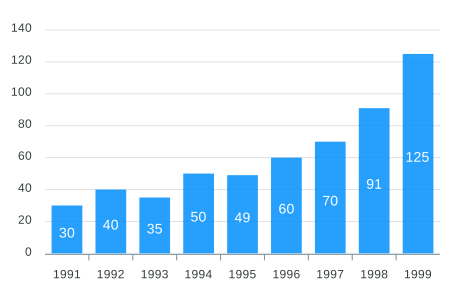
To create a basic bar chart with minimal configuration, write as follows:
class App extends Component {
  constructor(props) {
    super(props);

    this.state = {
      options: {
        chart: {
          id: 'apexchart-example'
        },
        xaxis: {
          categories: [1991, 1992, 1993, 1994, 1995, 1996, 1997, 1998, 1999]
        }
      },
      series: [{
        name: 'series-1',
        data: [30, 40, 35, 50, 49, 60, 70, 91, 125]
      }]
    }
  }
  render() {
    return (
      <Chart options={this.state.options} series={this.state.series} type="bar" width={500} height={320} />
    )
  }
}
This will render the following chart
How do I update the chart?
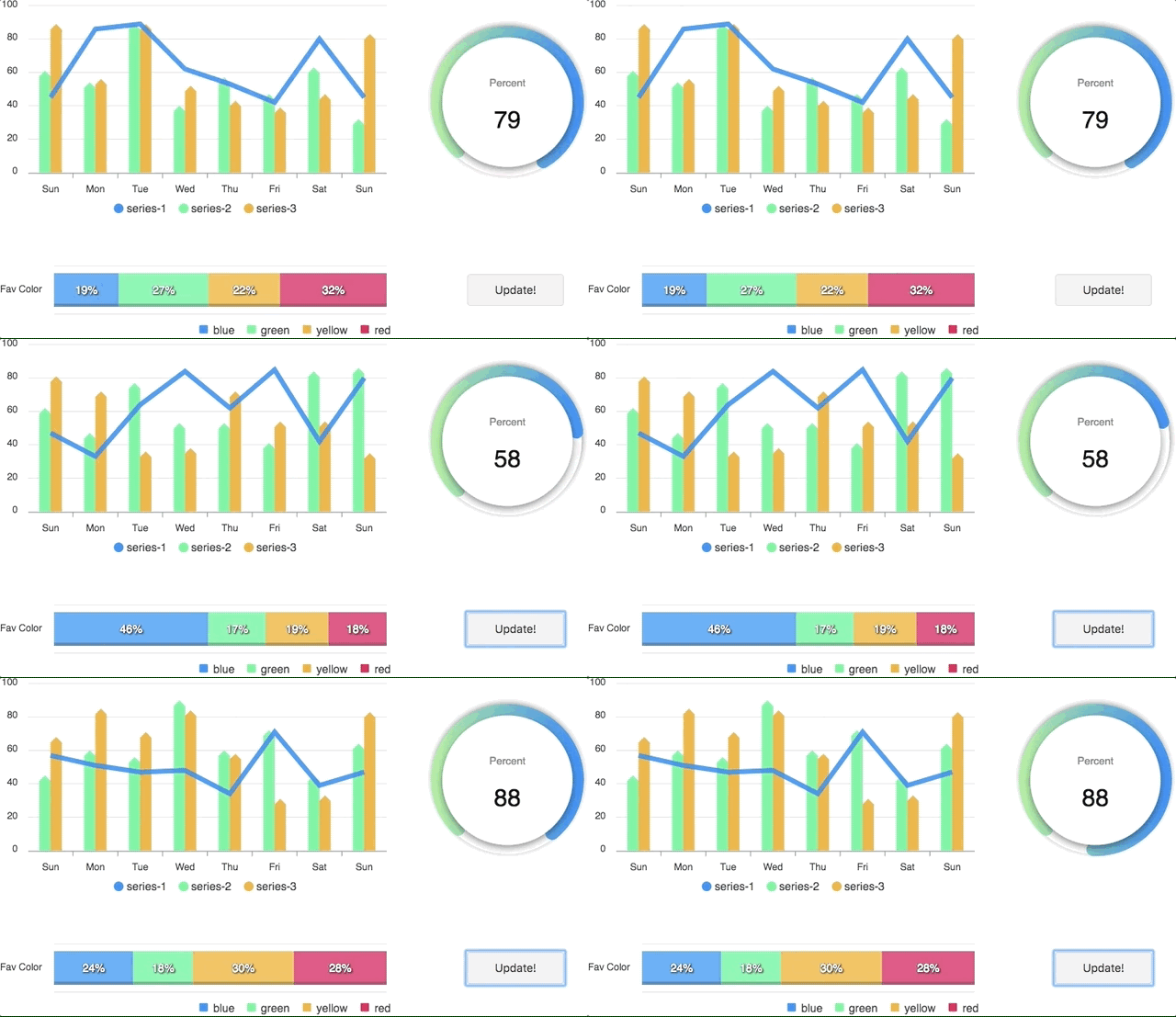
Simple! Just change the series or any option and it will automatically re-render the chart.
View this example on codesandbox
Server-Side Rendering (SSR) with Next.js App Router
New in v2.0.0: react-apexcharts now supports Server-Side Rendering with Next.js 13+ App Router using ApexCharts v5.5.0+.
Server Component (RSC)
Render charts on the server for faster initial page loads:
import Chart from 'react-apexcharts/server'

export default async function DashboardPage() {
  const series = [{
    name: 'series-1',
    data: [30, 40, 35, 50, 49, 60, 70, 91, 125]
  }]

  const options = {
    chart: { id: 'apexchart-example' },
    xaxis: { categories: [1991, 1992, 1993, 1994, 1995, 1996, 1997, 1998, 1999] }
  }

  return (
    <Chart
      type="bar"
      series={series}
      options={options}
      width={500}
      height={320}
    />
  )
}
With Client-Side Hydration
For interactive charts, combine server rendering with client-side hydration:
// app/dashboard/page.tsx (Server Component)
import Chart from 'react-apexcharts/server'
import ChartHydrate from './ChartHydrate'

export default async function DashboardPage() {
  const series = [{ data: [30, 40, 35, 50, 49, 60, 70] }]
  const options = { chart: { type: 'bar' }, xaxis: { categories: ['A', 'B', 'C', 'D', 'E', 'F', 'G'] } }

  return (
    <div>
      <Chart type="bar" series={series} options={options} width={500} height={300} />
      <ChartHydrate />
    </div>
  )
}
// app/dashboard/ChartHydrate.tsx (Client Component)
'use client'
import Hydrate from 'react-apexcharts/hydrate'

export default function ChartHydrate() {
  return (
    <Hydrate
      className="my-chart"
      clientOptions={{
        chart: {
          animations: {
            enabled: true,
            speed: 800
          }
        }
      }}
    />
  )
}
Client-Only Usage in Next.js
For client-only rendering (same as before):
'use client'
import Chart from 'react-apexcharts'

export default function ClientChart() {
  const options = {
    chart: { id: 'apexchart-example' },
    xaxis: { categories: [1991, 1992, 1993, 1994, 1995, 1996, 1997, 1998, 1999] }
  }

  const series = [{
    name: 'series-1',
    data: [30, 40, 35, 50, 49, 60, 70, 91, 125]
  }]

  return <Chart type="bar" series={series} options={options} />
}
Important: While updating the options, make sure to update the outermost property even when you need to update the nested property.
✅ Do this
this.setState({
  options: {
    ...this.state.options,
    xaxis: {
      ...this.state.options.xaxis,
      categories: ['X1', 'X2', 'X3']
    }
  }
})
❌ Not this
this.setState({
  options.xaxis.categories: ['X1', 'X2', 'X3']
})
Tree-Shaking (Smaller Bundles)
New in v2.1.0: Use the /core export to reduce your bundle size by only importing the chart types and features you actually use. This requires apexcharts >=5.10.1.
// Instead of:
import Chart from 'react-apexcharts'

// Use the core variant:
import Chart from 'react-apexcharts/core'

// Then manually register only what you need:
import 'apexcharts/bar'                  // bar / column chart type
import 'apexcharts/line'                 // line / area / scatter chart type
import 'apexcharts/features/legend'      // legend feature
import 'apexcharts/features/annotations' // annotations feature
// ... etc.
Full example:
import Chart from 'react-apexcharts/core'
import 'apexcharts/bar'
import 'apexcharts/features/legend'

export default function BarChart() {
  const series = [{ name: 'Sales', data: [30, 40, 35, 50, 49, 60, 70, 91, 125] }]
  const options = {
    chart: { id: 'bar-chart' },
    xaxis: { categories: [1991, 1992, 1993, 1994, 1995, 1996, 1997, 1998, 1999] }
  }

  return <Chart type="bar" series={series} options={options} width={500} height={320} />
}
The core variant also has SSR and hydration counterparts:
import Chart from 'react-apexcharts/core/server'   // Server Component (async)
import Hydrate from 'react-apexcharts/core/hydrate' // Client hydration
Note for Vite users: Add
resolve: { dedupe: ['apexcharts'] }to yourvite.config.jsto prevent Vite from loading two separate ApexCharts instances when mixing imports.
Props
| Prop | Type | Description |
|---|---|---|
| series | Array | The series is a set of data. To know more about the format of the data, checkout Series docs on the website. |
| type | String | line, area, bar, pie, donut, scatter, bubble, heatmap, radialBar |
| width | Number or String | Possible values for width can be 100%, 400px or 400 (by default is 100%) |
| height | Number or String | Possible values for height can be 100%, 300px or 300 (by default is auto) |
| options | Object | The configuration object, see options on API (Reference) |
| chartRef | React.RefObject | Pass a ref to get access to the underlying ApexCharts instance for imperative API calls |
How to call methods of ApexCharts programmatically?
Sometimes, you may want to call other methods of the core ApexCharts library, and you can do so on ApexCharts global variable directly
Example
ApexCharts.exec('reactchart-example', 'updateSeries', [{
  data: [40, 55, 65, 11, 23, 44, 54, 33]
}])
More info on the .exec() method can be found here
All other methods of ApexCharts can be called this way
What's included
The published package includes the following files.
react-apexcharts/
├── dist/
│   ├── react-apexcharts.cjs.js          # CommonJS (default import)
│   ├── react-apexcharts.esm.js          # ES Module (default import)
│   ├── react-apexcharts.iife.min.js     # IIFE for browser <script> tags
│   ├── react-apexcharts.min.js          # CommonJS (backward compat alias)
│   ├── react-apexcharts-server.esm.js   # react-apexcharts/server
│   ├── react-apexcharts-hydrate.esm.js  # react-apexcharts/hydrate
│   ├── react-apexcharts-core.cjs.js     # react-apexcharts/core (CJS)
│   ├── react-apexcharts-core.esm.js     # react-apexcharts/core (ESM)
│   ├── react-apexcharts-core-server.esm.js   # react-apexcharts/core/server
│   └── react-apexcharts-core-hydrate.esm.js  # react-apexcharts/core/hydrate
└── types/
    ├── react-apexcharts.d.ts
    ├── react-apexcharts-server.d.ts
    ├── react-apexcharts-hydrate.d.ts
    ├── react-apexcharts-core.d.ts
    ├── react-apexcharts-core-server.d.ts
    └── react-apexcharts-core-hydrate.d.ts
Development
Install dependencies
npm install
Running the example
Basic example including update is included to show how to get started using ApexCharts with React easily.
To run the examples,
cd example
npm install
npm run start
Bundling
To build
npm run build
License
ApexCharts is offered under a dual-license model to support individuals, startups, and commercial products of all sizes. Read full license agreements here: https://apexcharts.com/license