前端文件下载与 Blob 数据处理方案深度对比
blob-util、download、downloadjs、file-saver 和 js-file-download 都是用于处理浏览器端文件操作的工具库,但它们的侧重点截然不同。blob-util 专注于底层 Blob 数据的转换与操作(如 Blob 转 Base64、图片裁剪等),不直接处理下载行为。file-saver 是业界标准的文件保存库,专门解决跨浏览器兼容性问题,确保文件能正确触发保存对话框。downloadjs 和 js-file-download 是轻量级的替代方案,旨在用更少的代码实现类似 file-saver 的核心功能。而 download 包则是一个更上层的工具,不仅处理保存,还内置了从 URL 获取数据的能力,但在现代前端架构中因其 Node.js 依赖和维护状态需谨慎使用。
npm下载趋势
GitHub Stars 排名
统计详情


前端文件下载与 Blob 数据处理:五大核心库深度解析
在前端开发中,处理文件下载和二进制数据(Blob)是常见但充满陷阱的场景。不同的浏览器对 Blob 的处理机制、下载触发方式以及内存限制有着显著差异。blob-util、download、downloadjs、file-saver 和 js-file-download 代表了五种不同的解决思路:从底层的二进制转换到上层的自动抓取,再到标准化的保存行为。
本文将深入分析这些库的技术实现差异,帮助你在架构选型时做出最准确的决策。
🛠️ 核心定位:数据处理 vs 行为触发
首先必须明确一个关键区别:这些库并非都在做同一件事。
blob-util 是唯一一个不直接触发下载的库。它的定位是"二进制数据工具箱"。它专注于在内存中对 Blob 对象进行转换、操作和格式化。如果你的需求是"把 Blob 变成 Base64"或者"裁剪图片 Blob",它是首选;但如果你要"保存文件",你需要配合其他库使用。
file-saver、downloadjs 和 js-file-download 的核心使命一致:触发浏览器的下载行为。它们接收数据(Blob、String、ArrayBuffer),构造链接或调用特定 API,强制浏览器弹出"另存为"对话框或直接保存到下载文件夹。
download 则是一个全能型选手,它试图封装"从 URL 获取数据" + "保存文件"的全过程。但这在现代前端架构中往往带来多余的依赖。
📦 场景一:触发文件下载 (Save As)
这是最常见的需求:用户点击按钮,保存一个生成的报表或图片。
file-saver: 行业标准,兼容性之王
file-saver 实现了 W3C 的 saveAs() 接口。它的最大价值在于处理了各种浏览器的怪异行为。例如,旧版 Safari 不允许直接下载 Blob,file-saver 会自动将其转换为 DataURL 来处理;IE10+ 需要特定的 msSaveBlob 调用。它是企业级应用的首选。
import { saveAs } from 'file-saver';

// 创建一个 Blob 对象
const blob = new Blob(["Hello World"], { type: "text/plain;charset=utf-8" });

// 触发下载,文件名为 hello.txt
saveAs(blob, "hello.txt");
downloadjs: 轻量级,零依赖
downloadjs 的 API 极其简洁,没有复杂的兼容性黑魔法,主要依赖现代浏览器的标准行为。它的体积非常小,适合对包大小敏感的项目。它接受多种数据格式,自动判断处理方式。
import download from 'downloadjs';

// 直接传入字符串或 Blob
const data = "Content to download";

// 参数:数据,文件名,MIME 类型
download(data, "hello.txt", "text/plain");
js-file-download: 语义化,适合 Axios 用户
js-file-download 的设计特别照顾了从 HTTP 客户端(如 Axios)获取响应流的场景。它的 API 允许你直接传递数据内容和文件名,逻辑清晰。它在处理 Blob 时表现稳定,是 file-saver 的一个现代化轻量替代。
import fileDownload from 'js-file-download';

// 假设你从 API 获取了一个 blob 对象
const blobData = await fetch('/api/report').then(res => res.blob());

// 直接下载
fileDownload(blobData, 'report.pdf', 'application/pdf');
download: 从 URL 直接抓取 (需谨慎)
download 包的独特之处在于它可以接受一个 URL 字符串,内部发起请求获取数据后再保存。这在某些简单脚本中很方便,但在现代前端项目中,这通常意味着你放弃了使用项目统一 HTTP 客户端(如 Axios 或 Fetch)的机会,且可能遇到 CORS 问题。
import download from 'download';

// 注意:此包在浏览器端使用可能需要额外的构建配置或 polyfill
// 它尝试从 URL 获取数据并保存
await download('https://example.com/file.zip', 'dist/');
架构建议:在现代项目中,避免使用
download包来处理网络请求。应使用项目的标准 HTTP 层(Fetch/Axios)获取 Blob,然后交给file-saver或downloadjs进行保存。这样能更好地统一处理拦截器、Token 认证和错误日志。
🖼️ 场景二:Blob 数据转换与处理
当你需要在保存之前对二进制数据进行操作时,blob-util 是无可替代的。
blob-util: 强大的二进制工具集
它提供了一系列 Promise 化的工具函数。例如,将后端返回的 Blob 图片转换为 Base64 以便在 <img> 标签中预览,或者将 Canvas 导出的 Blob 转换为 ArrayBuffer 进行上传。
import { blobToDataURL, imgSrcToBlob, crop } from 'blob-util';

// 场景:将 Blob 转换为 Base64 用于预览
async function previewImage(blob) {
  const dataUrl = await blobToDataURL(blob);
  document.querySelector('img').src = dataUrl;
}

// 场景:从图片 URL 获取 Blob 并裁剪
async function processImage() {
  const blob = await imgSrcToBlob('https://example.com/photo.jpg');
  // 注意:crop 函数需要额外的参数定义,此处演示 API 存在性
  // const croppedBlob = await crop(blob, 100, 100, 0, 0);
}
其他库(如 file-saver)不具备此类数据处理能力。如果你只用了 file-saver 却需要做格式转换,你必须自己编写繁琐的 FileReader 代码,而 blob-util 封装了这些复杂性。
⚠️ 关键差异:浏览器兼容性与维护状态
1. 维护状态与风险提示
file-saver: 长期维护,社区认可度最高,是事实上的标准。blob-util: 维护稳定,专注于底层工具,API 变化小。downloadjs/js-file-download: 维护良好,适合现代浏览器环境。download: 高风险。该库在 npm 上的更新频率较低,且其设计初衷混合了 Node.js 和浏览器环境。在现代打包工具(Webpack/Vite)中,它经常需要额外的 shim 配置才能在浏览器运行。强烈建议在新项目中弃用此包,改用 "Fetch + file-saver/downloadjs" 的组合模式。
2. Safari 的特殊处理
Safari 对 Blob 下载有严格限制,直接创建 <a> 标签点击下载往往无效,或者文件名会丢失。
file-saver: 内部内置了针对 Safari 的逻辑(检测 userAgent,切换策略),这是它最大的护城河。downloadjs/js-file-download: 依赖浏览器的标准行为。在最新的 Safari 版本中通常工作正常,但在旧版本中可能不如file-saver稳健。
📊 技术选型决策矩阵
| 特性 | file-saver | downloadjs | js-file-download | blob-util | download |
|---|---|---|---|---|---|
| 核心功能 | 触发下载 (saveAs) | 触发下载 | 触发下载 | Blob 数据转换 | 抓取 URL + 下载 |
| 体积 | 中等 | 极小 | 小 | 中等 | 较大 |
| Safari 兼容 | ⭐⭐⭐⭐⭐ (内置处理) | ⭐⭐⭐ (依赖标准) | ⭐⭐⭐ (依赖标准) | N/A | ⭐⭐ (配置复杂) |
| 数据处理 | ❌ | ❌ | ❌ | ✅ (强项) | ❌ |
| 网络请求 | ❌ | ❌ | ❌ | ❌ | ✅ (内置) |
| 推荐场景 | 企业级、高兼容要求 | 轻量级、现代浏览器 | Axios 项目、语义化需求 | 图片处理、格式转换 | 不推荐 (已过时模式) |
💡 最佳实践架构模式
在现代前端架构中,最稳健的文件下载流程通常是"分层解耦"的:
- 数据层:使用
axios或fetch获取二进制流。配置responseType: 'blob'。 - 处理层 (可选):如果需要预览或修改,使用
blob-util进行转换。 - 交互层:使用
file-saver(追求稳) 或downloadjs(追求轻) 触发保存。
推荐代码模式:
// 1. 使用 Axios 获取数据 (统一网络层)
import axios from 'axios';
// 2. 使用 file-saver 保存 (统一交互层)
import { saveAs } from 'file-saver';

async function downloadReport() {
  try {
    const response = await axios.get('/api/export/excel', {
      responseType: 'blob' // 关键:告诉 Axios 返回 Blob
    });

    // 可选:从响应头获取文件名
    const fileName = response.headers['content-disposition']
      ? response.headers['content-disposition'].split('filename=')[1]
      : 'report.xlsx';

    // 触发保存
    saveAs(response.data, fileName);
  } catch (error) {
    console.error("下载失败", error);
  }
}
🏁 总结
- 如果你的首要目标是**"绝对可靠地保存文件",尤其是在需要支持旧浏览器或企业环境中,
file-saver** 是不二之选。 - 如果你追求**"极致轻量"且只面向现代浏览器,
downloadjs** 或js-file-download能提供清爽的开发体验。 - 如果你需要**"操作二进制数据"**(如转 Base64、裁剪、合并),必须引入
blob-util,它可以与其他下载库完美配合。 - 避免使用
download包。将"网络请求"和"文件保存"分离,能让你的代码更符合现代前端工程化规范,也更易于调试和维护。
如何选择: blob-util vs download vs downloadjs vs file-saver vs js-file-download
- blob-util:
当你的核心需求是处理二进制数据而非直接触发下载时,选择
blob-util。它提供了丰富的工具函数来处理 Blob 对象,例如将 Blob 转换为 DataURL、ArrayBuffer 或进行图像裁剪。如果你正在构建一个需要先在内存中处理图片(如压缩、格式转换)然后再决定后续操作的应用,这是最佳选择。 - download:
仅在需要在 Node.js 环境或非常老旧的项目中从 URL 直接抓取并保存文件时考虑
download。由于该库在现代浏览器环境中的维护状态不明且往往需要额外的 polyfill 或构建配置,对于纯粹的前端项目,建议优先选择其他更轻量、更专注于浏览器端的替代方案,以避免潜在的依赖冲突。 - downloadjs:
如果你需要一个零依赖、体积极小且 API 简单的方案来触发文件下载,
downloadjs是理想选择。它通过单一的函数调用即可处理 Blob、ArrayBuffer 或 DataURL 的下载,适合那些不想引入重型库且只需要标准下载功能的现代项目。它在大多数现代浏览器中表现良好,无需复杂的配置。 - file-saver:
当你的项目必须支持广泛的浏览器(包括旧版 IE 和 Safari)且对文件保存的稳定性有极高要求时,
file-saver是行业标准选择。它内部处理了各种浏览器的边缘情况(如 Safari 的 Blob 限制),提供了最可靠的saveAs接口。如果你的应用面向企业用户或公共网络,且不能容忍下载失败,应优先使用此库。 - js-file-download:
选择
js-file-download如果你希望获得比downloadjs更语义化的 API,同时保持轻量级。它特别擅长处理从 Axios 等 HTTP 客户端返回的 Blob 数据流,允许你直接传入 response 对象并指定文件名。对于主要基于现代浏览器且希望通过简洁链式调用完成下载任务的项目,这是一个高效的中间选项。
热门对比
blob-util的README
blob-util 

blob-util is a Blob library for busy people.
It offers a small set of cross-browser utilities for translating Blobs to and from different formats:
<img/>tags- base 64 strings
- binary strings
- ArrayBuffers
- data URLs
- canvas
It's also a good pairing with the attachment API in PouchDB.
Note: this is a browser library. For Node.js, see Buffers.
Topics:
Install
Via npm:
npm install blob-util
ES modules are supported:
import { canvasToBlob } from 'blob-util'
canvasToBlob(canvas, 'image/png').then(/* ... */)
Or as a script tag:
<script src="https://unpkg.com/blob-util/dist/blob-util.min.js"></script>
Then it's available as a global blobUtil object:
blobUtil.canvasToBlob(canvas, 'image/png').then(/* ... */)
Browser support
As of v2.0.0, a built-in Promise polyfill is no longer provided. Assuming you provide a Promise
polyfill, the supported browsers are:
- Firefox
- Chrome
- Edge
- IE 10+
- Safari 6+
- iOS 6+
- Android 4+
- Any browser with either
Blobor the olderBlobBuilder; see caniuse for details.
Tutorial
Blobs (binary large objects) are the modern way of working with binary data in the browser. The browser support is very good.
Once you have a Blob, you can make it available offline by storing it in IndexedDB, PouchDB, LocalForage, or other in-browser databases. So it's the perfect format for working with offline images, sound, and video.
A File is also a Blob. So if you have an <input type="file"> in your page, you can let your users upload any file and then work with it as a Blob.
Example
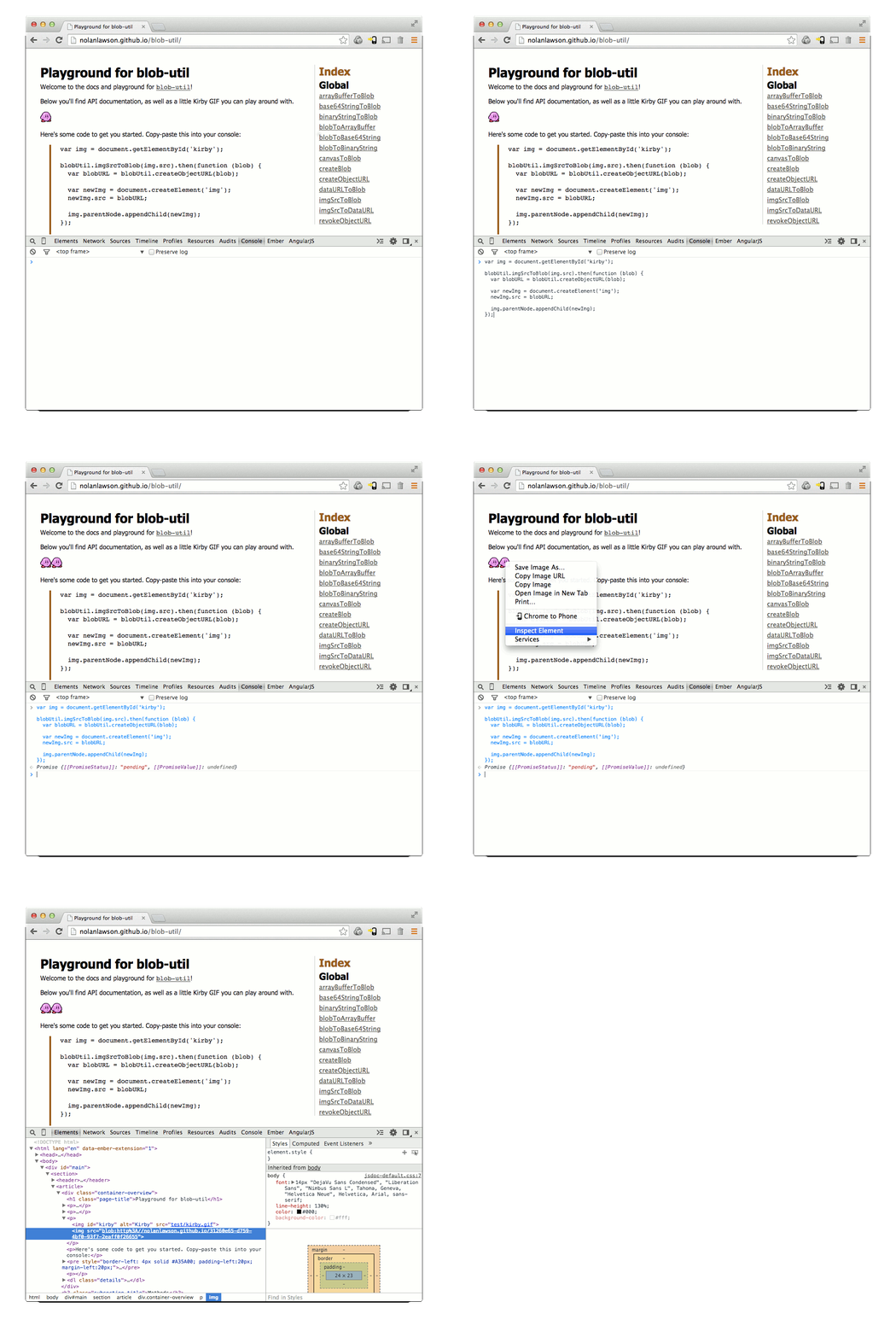
Here's Kirby. He's a famous little Blob.

So let's fulfill his destiny, and convert him to a real Blob object.
var img = document.getElementById('kirby');

blobUtil.imgSrcToBlob(img.src).then(function (blob) {
  // ladies and gents, we have a blob
}).catch(function (err) {
  // image failed to load
});
(Don't worry, this won't download the image twice, because browsers are smart.)
Now that we have a Blob, we can convert it to a URL and use that as the source for another <img/> tag:
var blobURL = blobUtil.createObjectURL(blob);

var newImg = document.createElement('img');
newImg.src = blobURL;

document.body.appendChild(newImg);
So now we have two Kirbys - one with a normal URL, and the other with a blob URL. You can try this out yourself in the blob-util playground. Super fun!
API
Index
Functions
- arrayBufferToBinaryString
- arrayBufferToBlob
- base64StringToBlob
- binaryStringToArrayBuffer
- binaryStringToBlob
- blobToArrayBuffer
- blobToBase64String
- blobToBinaryString
- blobToDataURL
- canvasToBlob
- createBlob
- createObjectURL
- dataURLToBlob
- imgSrcToBlob
- imgSrcToDataURL
- revokeObjectURL
Functions
arrayBufferToBinaryString
▸ arrayBufferToBinaryString(buffer: ArrayBuffer): string
Convert an ArrayBuffer to a binary string.
Example:
var myString = blobUtil.arrayBufferToBinaryString(arrayBuff)
Parameters:
| Param | Type | Description |
|---|---|---|
| buffer | ArrayBuffer | array buffer |
Returns: string
binary string
arrayBufferToBlob
▸ arrayBufferToBlob(buffer: ArrayBuffer, type?: string): Blob
Convert an ArrayBuffer to a Blob.
Example:
var blob = blobUtil.arrayBufferToBlob(arrayBuff, 'audio/mpeg');
Parameters:
| Param | Type | Description |
|---|---|---|
| buffer | ArrayBuffer | - |
Optional type | string | the content type (optional) |
Returns: Blob
Blob
base64StringToBlob
▸ base64StringToBlob(base64: string, type?: string): Blob
Convert a base64-encoded string to a Blob.
Example:
var blob = blobUtil.base64StringToBlob(base64String);
Parameters:
| Param | Type | Description |
|---|---|---|
| base64 | string | base64-encoded string |
Optional type | string | the content type (optional) |
Returns: Blob
Blob
binaryStringToArrayBuffer
▸ binaryStringToArrayBuffer(binary: string): ArrayBuffer
Convert a binary string to an ArrayBuffer.
var myBuffer = blobUtil.binaryStringToArrayBuffer(binaryString)
Parameters:
| Param | Type | Description |
|---|---|---|
| binary | string | binary string |
Returns: ArrayBuffer
array buffer
binaryStringToBlob
▸ binaryStringToBlob(binary: string, type?: string): Blob
Convert a binary string to a Blob.
Example:
var blob = blobUtil.binaryStringToBlob(binaryString);
Parameters:
| Param | Type | Description |
|---|---|---|
| binary | string | binary string |
Optional type | string | the content type (optional) |
Returns: Blob
Blob
blobToArrayBuffer
▸ blobToArrayBuffer(blob: Blob): Promise<ArrayBuffer>
Convert a Blob to an ArrayBuffer.
Example:
blobUtil.blobToArrayBuffer(blob).then(function (arrayBuff) {
  // success
}).catch(function (err) {
  // error
});
Parameters:
| Param | Type | Description |
|---|---|---|
| blob | Blob | - |
Returns: Promise<ArrayBuffer>
Promise that resolves with the ArrayBuffer
blobToBase64String
▸ blobToBase64String(blob: Blob): Promise<string>
Convert a Blob to a binary string.
Example:
blobUtil.blobToBase64String(blob).then(function (base64String) {
  // success
}).catch(function (err) {
  // error
});
Parameters:
| Param | Type | Description |
|---|---|---|
| blob | Blob | - |
Returns: Promise<string>
Promise that resolves with the binary string
blobToBinaryString
▸ blobToBinaryString(blob: Blob): Promise<string>
Convert a Blob to a binary string.
Example:
blobUtil.blobToBinaryString(blob).then(function (binaryString) {
  // success
}).catch(function (err) {
  // error
});
Parameters:
| Param | Type | Description |
|---|---|---|
| blob | Blob | - |
Returns: Promise<string>
Promise that resolves with the binary string
blobToDataURL
▸ blobToDataURL(blob: Blob): Promise<string>
Convert a Blob to a data URL string (e.g. 'data:image/png;base64,iVBORw0KG...').
Example:
var dataURL = blobUtil.blobToDataURL(blob);
Parameters:
| Param | Type | Description |
|---|---|---|
| blob | Blob | - |
Returns: Promise<string>
Promise that resolves with the data URL string
canvasToBlob
▸ canvasToBlob(canvas: HTMLCanvasElement, type?: string, quality?: number): Promise<Blob>
Convert a canvas to a Blob.
Examples:
blobUtil.canvasToBlob(canvas).then(function (blob) {
  // success
}).catch(function (err) {
  // error
});
Most browsers support converting a canvas to both 'image/png' and 'image/jpeg'. You may also want to try 'image/webp', which will work in some browsers like Chrome (and in other browsers, will just fall back to 'image/png'):
blobUtil.canvasToBlob(canvas, 'image/webp').then(function (blob) {
  // success
}).catch(function (err) {
  // error
});
Parameters:
| Param | Type | Description |
|---|---|---|
| canvas | HTMLCanvasElement | HTMLCanvasElement |
Optional type | string | the content type (optional, defaults to 'image/png') |
Optional quality | number | a number between 0 and 1 indicating image quality if the requested type is 'image/jpeg' or 'image/webp' |
Returns: Promise<Blob>
Promise that resolves with the Blob
createBlob
▸ createBlob(parts: Array<any>, properties?: * BlobPropertyBag | string*): Blob
Shim for new Blob() to support older browsers that use the deprecated BlobBuilder API.
Example:
var myBlob = blobUtil.createBlob(['hello world'], {type: 'text/plain'});
Parameters:
| Param | Type | Description |
|---|---|---|
| parts | Array<any> | content of the Blob |
Optional properties | BlobPropertyBag | string | usually {type: myContentType}, you can also pass a string for the content type |
Returns: Blob
Blob
createObjectURL
▸ createObjectURL(blob: Blob): string
Shim for URL.createObjectURL() to support browsers that only have the prefixed webkitURL (e.g. Android <4.4).
Example:
var myUrl = blobUtil.createObjectURL(blob);
Parameters:
| Param | Type | Description |
|---|---|---|
| blob | Blob | - |
Returns: string
url
dataURLToBlob
▸ dataURLToBlob(dataURL: string): Blob
Convert a data URL string (e.g. 'data:image/png;base64,iVBORw0KG...') to a Blob.
Example:
var blob = blobUtil.dataURLToBlob(dataURL);
Parameters:
| Param | Type | Description |
|---|---|---|
| dataURL | string | dataURL-encoded string |
Returns: Blob
Blob
imgSrcToBlob
▸ imgSrcToBlob(src: string, type?: string, crossOrigin?: string, quality?: number): Promise<Blob>
Convert an image's src URL to a Blob by loading the image and painting it to a canvas.
Note: this will coerce the image to the desired content type, and it will only paint the first frame of an animated GIF.
Examples:
blobUtil.imgSrcToBlob('http://mysite.com/img.png').then(function (blob) {
  // success
}).catch(function (err) {
  // error
});
blobUtil.imgSrcToBlob('http://some-other-site.com/img.jpg', 'image/jpeg',
                         'Anonymous', 1.0).then(function (blob) {
  // success
}).catch(function (err) {
  // error
});
Parameters:
| Param | Type | Description |
|---|---|---|
| src | string | image src |
Optional type | string | the content type (optional, defaults to 'image/png') |
Optional crossOrigin | string | for CORS-enabled images, set this to 'Anonymous' to avoid "tainted canvas" errors |
Optional quality | number | a number between 0 and 1 indicating image quality if the requested type is 'image/jpeg' or 'image/webp' |
Returns: Promise<Blob>
Promise that resolves with the Blob
imgSrcToDataURL
▸ imgSrcToDataURL(src: string, type?: string, crossOrigin?: string, quality?: number): Promise<string>
Convert an image's src URL to a data URL by loading the image and painting it to a canvas.
Note: this will coerce the image to the desired content type, and it will only paint the first frame of an animated GIF.
Examples:
blobUtil.imgSrcToDataURL('http://mysite.com/img.png').then(function (dataURL) {
  // success
}).catch(function (err) {
  // error
});
blobUtil.imgSrcToDataURL('http://some-other-site.com/img.jpg', 'image/jpeg',
                         'Anonymous', 1.0).then(function (dataURL) {
  // success
}).catch(function (err) {
  // error
});
Parameters:
| Param | Type | Description |
|---|---|---|
| src | string | image src |
Optional type | string | the content type (optional, defaults to 'image/png') |
Optional crossOrigin | string | for CORS-enabled images, set this to 'Anonymous' to avoid "tainted canvas" errors |
Optional quality | number | a number between 0 and 1 indicating image quality if the requested type is 'image/jpeg' or 'image/webp' |
Returns: Promise<string>
Promise that resolves with the data URL string
revokeObjectURL
▸ revokeObjectURL(url: string): void
Shim for URL.revokeObjectURL() to support browsers that only have the prefixed webkitURL (e.g. Android <4.4).
Example:
blobUtil.revokeObjectURL(myUrl);
Parameters:
| Param | Type | Description |
|---|---|---|
| url | string |
Returns: void
Credits
Thanks to the rest of the PouchDB team for figuring most of this crazy stuff out.
Building the library
npm install
npm run build
Testing the library
npm install
Then to test in the browser using Saucelabs:
npm test
Or to test locally in your browser of choice:
npm run test-local
To build the API docs and insert them in the README:
npm run doc