blob-util 

blob-util is a Blob library for busy people.
It offers a small set of cross-browser utilities for translating Blobs to and from different formats:
<img/> tags- base 64 strings
- binary strings
- ArrayBuffers
- data URLs
- canvas
It's also a good pairing with the attachment API in PouchDB.
Note: this is a browser library. For Node.js, see Buffers.
Topics:
Install
Via npm:
npm install blob-util
ES modules are supported:
import { canvasToBlob } from 'blob-util'
canvasToBlob(canvas, 'image/png').then(/* ... */)
Or as a script tag:
<script src="https://unpkg.com/blob-util/dist/blob-util.min.js"></script>
Then it's available as a global blobUtil object:
blobUtil.canvasToBlob(canvas, 'image/png').then(/* ... */)
Browser support
As of v2.0.0, a built-in Promise polyfill is no longer provided. Assuming you provide a Promise
polyfill, the supported browsers are:
- Firefox
- Chrome
- Edge
- IE 10+
- Safari 6+
- iOS 6+
- Android 4+
- Any browser with either
Blob or the older BlobBuilder; see caniuse for details.
Tutorial
Blobs (binary large objects) are the modern way of working with binary data in the browser. The browser support is very good.
Once you have a Blob, you can make it available offline by storing it in IndexedDB, PouchDB, LocalForage, or other in-browser databases. So it's the perfect format for working with offline images, sound, and video.
A File is also a Blob. So if you have an <input type="file"> in your page, you can let your users upload any file and then work with it as a Blob.
Example
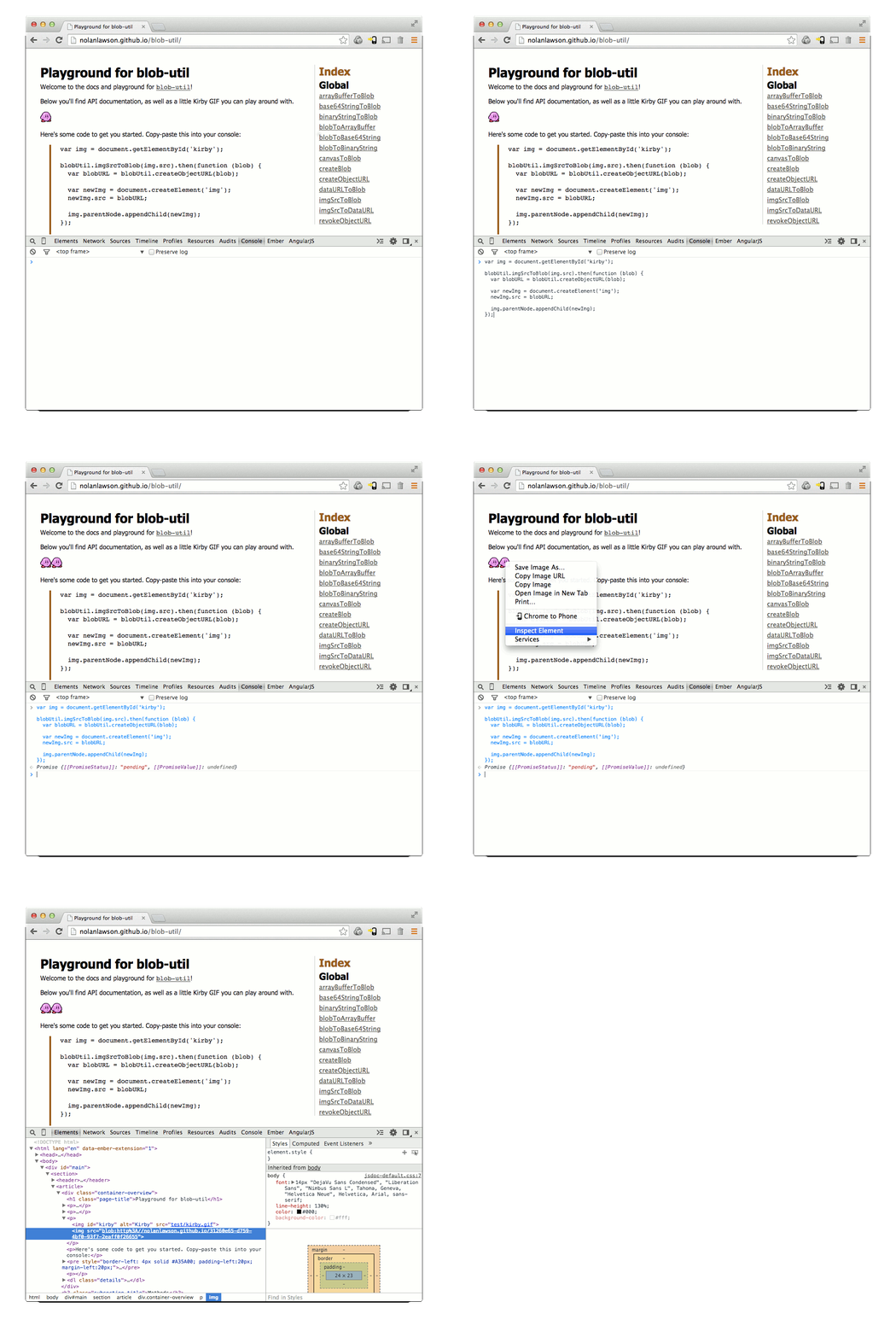
Here's Kirby. He's a famous little Blob.

So let's fulfill his destiny, and convert him to a real Blob object.
var img = document.getElementById('kirby');

blobUtil.imgSrcToBlob(img.src).then(function (blob) {
  // ladies and gents, we have a blob
}).catch(function (err) {
  // image failed to load
});
(Don't worry, this won't download the image twice, because browsers are smart.)
Now that we have a Blob, we can convert it to a URL and use that as the source for another <img/> tag:
var blobURL = blobUtil.createObjectURL(blob);

var newImg = document.createElement('img');
newImg.src = blobURL;

document.body.appendChild(newImg);
So now we have two Kirbys - one with a normal URL, and the other with a blob URL. You can try this out yourself in the blob-util playground. Super fun!
API
Index
Functions
Functions
arrayBufferToBinaryString
▸ arrayBufferToBinaryString(buffer: ArrayBuffer): string
Convert an ArrayBuffer to a binary string.
Example:
var myString = blobUtil.arrayBufferToBinaryString(arrayBuff)
Parameters:
| Param | Type | Description |
|---|
| buffer | ArrayBuffer | array buffer |
Returns: string
binary string
arrayBufferToBlob
▸ arrayBufferToBlob(buffer: ArrayBuffer, type?: string): Blob
Convert an ArrayBuffer to a Blob.
Example:
var blob = blobUtil.arrayBufferToBlob(arrayBuff, 'audio/mpeg');
Parameters:
| Param | Type | Description |
|---|
| buffer | ArrayBuffer | - |
Optional type | string | the content type (optional) |
Returns: Blob
Blob
base64StringToBlob
▸ base64StringToBlob(base64: string, type?: string): Blob
Convert a base64-encoded string to a Blob.
Example:
var blob = blobUtil.base64StringToBlob(base64String);
Parameters:
| Param | Type | Description |
|---|
| base64 | string | base64-encoded string |
Optional type | string | the content type (optional) |
Returns: Blob
Blob
binaryStringToArrayBuffer
▸ binaryStringToArrayBuffer(binary: string): ArrayBuffer
Convert a binary string to an ArrayBuffer.
var myBuffer = blobUtil.binaryStringToArrayBuffer(binaryString)
Parameters:
| Param | Type | Description |
|---|
| binary | string | binary string |
Returns: ArrayBuffer
array buffer
binaryStringToBlob
▸ binaryStringToBlob(binary: string, type?: string): Blob
Convert a binary string to a Blob.
Example:
var blob = blobUtil.binaryStringToBlob(binaryString);
Parameters:
| Param | Type | Description |
|---|
| binary | string | binary string |
Optional type | string | the content type (optional) |
Returns: Blob
Blob
blobToArrayBuffer
▸ blobToArrayBuffer(blob: Blob): Promise<ArrayBuffer>
Convert a Blob to an ArrayBuffer.
Example:
blobUtil.blobToArrayBuffer(blob).then(function (arrayBuff) {
  // success
}).catch(function (err) {
  // error
});
Parameters:
| Param | Type | Description |
|---|
| blob | Blob | - |
Returns: Promise<ArrayBuffer>
Promise that resolves with the ArrayBuffer
blobToBase64String
▸ blobToBase64String(blob: Blob): Promise<string>
Convert a Blob to a binary string.
Example:
blobUtil.blobToBase64String(blob).then(function (base64String) {
  // success
}).catch(function (err) {
  // error
});
Parameters:
| Param | Type | Description |
|---|
| blob | Blob | - |
Returns: Promise<string>
Promise that resolves with the binary string
blobToBinaryString
▸ blobToBinaryString(blob: Blob): Promise<string>
Convert a Blob to a binary string.
Example:
blobUtil.blobToBinaryString(blob).then(function (binaryString) {
  // success
}).catch(function (err) {
  // error
});
Parameters:
| Param | Type | Description |
|---|
| blob | Blob | - |
Returns: Promise<string>
Promise that resolves with the binary string
blobToDataURL
▸ blobToDataURL(blob: Blob): Promise<string>
Convert a Blob to a data URL string (e.g. 'data:image/png;base64,iVBORw0KG...').
Example:
var dataURL = blobUtil.blobToDataURL(blob);
Parameters:
| Param | Type | Description |
|---|
| blob | Blob | - |
Returns: Promise<string>
Promise that resolves with the data URL string
canvasToBlob
▸ canvasToBlob(canvas: HTMLCanvasElement, type?: string, quality?: number): Promise<Blob>
Convert a canvas to a Blob.
Examples:
blobUtil.canvasToBlob(canvas).then(function (blob) {
  // success
}).catch(function (err) {
  // error
});
Most browsers support converting a canvas to both 'image/png' and 'image/jpeg'. You may also want to try 'image/webp', which will work in some browsers like Chrome (and in other browsers, will just fall back to 'image/png'):
blobUtil.canvasToBlob(canvas, 'image/webp').then(function (blob) {
  // success
}).catch(function (err) {
  // error
});
Parameters:
| Param | Type | Description |
|---|
| canvas | HTMLCanvasElement | HTMLCanvasElement |
Optional type | string | the content type (optional, defaults to 'image/png') |
Optional quality | number | a number between 0 and 1 indicating image quality if the requested type is 'image/jpeg' or 'image/webp' |
Returns: Promise<Blob>
Promise that resolves with the Blob
createBlob
▸ createBlob(parts: Array<any>, properties?: * BlobPropertyBag | string*): Blob
Shim for new Blob() to support older browsers that use the deprecated BlobBuilder API.
Example:
var myBlob = blobUtil.createBlob(['hello world'], {type: 'text/plain'});
Parameters:
| Param | Type | Description |
|---|
| parts | Array<any> | content of the Blob |
Optional properties | BlobPropertyBag | string | usually {type: myContentType}, you can also pass a string for the content type |
Returns: Blob
Blob
createObjectURL
▸ createObjectURL(blob: Blob): string
Shim for URL.createObjectURL() to support browsers that only have the prefixed webkitURL (e.g. Android <4.4).
Example:
var myUrl = blobUtil.createObjectURL(blob);
Parameters:
| Param | Type | Description |
|---|
| blob | Blob | - |
Returns: string
url
dataURLToBlob
▸ dataURLToBlob(dataURL: string): Blob
Convert a data URL string (e.g. 'data:image/png;base64,iVBORw0KG...') to a Blob.
Example:
var blob = blobUtil.dataURLToBlob(dataURL);
Parameters:
| Param | Type | Description |
|---|
| dataURL | string | dataURL-encoded string |
Returns: Blob
Blob
imgSrcToBlob
▸ imgSrcToBlob(src: string, type?: string, crossOrigin?: string, quality?: number): Promise<Blob>
Convert an image's src URL to a Blob by loading the image and painting it to a canvas.
Note: this will coerce the image to the desired content type, and it will only paint the first frame of an animated GIF.
Examples:
blobUtil.imgSrcToBlob('http://mysite.com/img.png').then(function (blob) {
  // success
}).catch(function (err) {
  // error
});
blobUtil.imgSrcToBlob('http://some-other-site.com/img.jpg', 'image/jpeg',
                         'Anonymous', 1.0).then(function (blob) {
  // success
}).catch(function (err) {
  // error
});
Parameters:
| Param | Type | Description |
|---|
| src | string | image src |
Optional type | string | the content type (optional, defaults to 'image/png') |
Optional crossOrigin | string | for CORS-enabled images, set this to 'Anonymous' to avoid "tainted canvas" errors |
Optional quality | number | a number between 0 and 1 indicating image quality if the requested type is 'image/jpeg' or 'image/webp' |
Returns: Promise<Blob>
Promise that resolves with the Blob
imgSrcToDataURL
▸ imgSrcToDataURL(src: string, type?: string, crossOrigin?: string, quality?: number): Promise<string>
Convert an image's src URL to a data URL by loading the image and painting it to a canvas.
Note: this will coerce the image to the desired content type, and it will only paint the first frame of an animated GIF.
Examples:
blobUtil.imgSrcToDataURL('http://mysite.com/img.png').then(function (dataURL) {
  // success
}).catch(function (err) {
  // error
});
blobUtil.imgSrcToDataURL('http://some-other-site.com/img.jpg', 'image/jpeg',
                         'Anonymous', 1.0).then(function (dataURL) {
  // success
}).catch(function (err) {
  // error
});
Parameters:
| Param | Type | Description |
|---|
| src | string | image src |
Optional type | string | the content type (optional, defaults to 'image/png') |
Optional crossOrigin | string | for CORS-enabled images, set this to 'Anonymous' to avoid "tainted canvas" errors |
Optional quality | number | a number between 0 and 1 indicating image quality if the requested type is 'image/jpeg' or 'image/webp' |
Returns: Promise<string>
Promise that resolves with the data URL string
revokeObjectURL
▸ revokeObjectURL(url: string): void
Shim for URL.revokeObjectURL() to support browsers that only have the prefixed webkitURL (e.g. Android <4.4).
Example:
blobUtil.revokeObjectURL(myUrl);
Parameters:
| Param | Type | Description |
|---|
| url | string | |
Returns: void
Credits
Thanks to the rest of the PouchDB team for figuring most of this crazy stuff out.
Building the library
npm install
npm run build
Testing the library
npm install
Then to test in the browser using Saucelabs:
npm test
Or to test locally in your browser of choice:
npm run test-local
To build the API docs and insert them in the README:
npm run doc

