Web アプリにおける QR コードの実装:読み取りと生成
html5-qrcode と qr-scanner は、ブラウザ上でカメラや画像から QR コードを読み取るためのライブラリです。一方、qrious は QR コードを生成して表示するためのライブラリです。これらを組み合わせることで、QR コードの「読み取り」と「生成」の両方に対応した Web アプリケーションを構築できます。html5-qrcode は UI コンポーネントを内蔵しており、qr-scanner は軽量でカスタマイズ性が高いことが特徴です。
npmのダウンロードトレンド
GitHub Starsランキング
統計詳細


QR コード実装の決定版:html5-qrcode、qr-scanner、qrious の比較
Web アプリケーションで QR コードを扱う場合、大きく分けて「読み取り(スキャン)」と「生成(作成)」の 2 つの機能が必要です。html5-qrcode と qr-scanner は読み取りに特化しており、qrious は生成に特化しています。これらは役割が異なるため、単に性能を比較するだけでなく、プロジェクトの要件に合わせて適切に組み合わせることが重要です。
📖 基本役割:読み取り vs 生成
まず明確にすべきは、これらが同じ問題を解決するわけではないという点です。
html5-qrcode と qr-scanner は、デバイスのカメラやアップロードされた画像から QR コードのデータを読み取ります。
qrious は、テキストや URL などのデータから QR コードの画像を生成し、Canvas 要素などに描画します。
したがって、QR コード決済や会員証表示など「生成と読み取りの両方」が必要なアプリでは、qrious に加えて、html5-qrcode または qr-scanner のどちらかを併用する構成が一般的です。
// qrious: 生成のみ
const qr = new QRious({ element: canvas, value: 'https://example.com' });

// html5-qrcode / qr-scanner: 読み取りのみ
// (スキャンロジックは別途実装が必要)
📷 スキャナーの導入方法:UI 込み vs ロジックのみ
読み取り機能を実装する際、最も大きな違いは「UI が含まれているか」です。
html5-qrcode は、カメラのプレビュー表示やスキャン結果の表示を含む UI コンポーネント(Html5QrcodeScanner)を標準で提供しています。
// html5-qrcode: UI 込みのスキャナー
import { Html5QrcodeScanner } from 'html5-qrcode';

const scanner = new Html5QrcodeScanner('reader', {
  fps: 10,
  qrbox: { width: 250, height: 250 }
});

scanner.render((decodedText) => {
  console.log(decodedText);
});
qr-scanner は UI を提供しません。ビデオ要素やキャンバス要素を自分で用意し、ライブラリに渡して処理させます。デザインを完全に制御したい場合に適しています。
// qr-scanner: ロジックのみ(UI は自前)
import QrScanner from 'qr-scanner';

const video = document.getElementById('video');
const scanner = new QrScanner(video, (result) => {
  console.log(result.data);
});

scanner.start();
⚙️ カメラ制御と権限管理
カメラへのアクセスは、ブラウザのセキュリティ制限により扱いが複雑になりがちです。
html5-qrcode は、内部でカメラの権限リクエストやストリームの開始を処理してくれます。開発者はボタンのクリックイベントなどをトリガーにすれば、比較的簡単にカメラを起動できます。
// html5-qrcode: 権限管理をライブラリに委ねる
// Html5QrcodeScanner を使う場合、UI 上のボタンクリックで自動処理される

// 手動制御の場合 (Html5Qrcode クラス)
const html5QrCode = new Html5Qrcode('reader');
html5QrCode.start(
  { facingMode: 'environment' },
  { fps: 10, qrbox: 250 },
  (decodedText) => { /* success */ }
);
qr-scanner は、ビデオ要素に対して直接ストリームを接続する必要があります。navigator.mediaDevices.getUserMedia を自分で呼び出し、取得したストリームをビデオ要素に設定した上で、スキャナーに渡します。
// qr-scanner: 自分でストリームを管理
async function startCamera() {
  const stream = await navigator.mediaDevices.getUserMedia({ video: { facingMode: 'environment' } });
  const video = document.getElementById('video');
  video.srcObject = stream;
  await video.play();

  const scanner = new QrScanner(video, (result) => console.log(result));
  scanner.start();
}
🎨 生成機能のカスタマイズ (qrious)
生成機能において、qrious は Canvas API を直接使用するため、スタイルのカスタマイズが容易です。
qrious は、チェーンメソッドで設定を積み上げていくスタイルを採用しています。色やサイズ、余白などを細かく指定できます。
// qrious: フルーエントな API で設定
new QRious({
  element: document.getElementById('qr-code'),
  value: 'https://example.com',
  size: 200,
  foreground: '#000000',
  background: '#ffffff',
  level: 'H'
});
一方、読み取りライブラリ(html5-qrcode, qr-scanner)には生成機能がないため、これらで QR コード画像を作ることはできません。生成が必要な場合は、必ず qrious や類似の生成ライブラリを別途導入する必要があります。
⚡ 性能と動作の軽さ
読み取りの精度や速度は、内部で使用しているアルゴリズムに依存します。
html5-qrcode は、内部で zxing(Zebra Crossing)という有名なライブラリを使用しています。多様なバーコード形式に対応しており、信頼性が高いですが、その分ライブラリの規模は大きくなりがちです。
qr-scanner は、Web Worker を使用して処理をバックグラウンドで実行するオプションを提供しています。これにより、メインスレッドがブロックされず、UI の描画が滑らかに保たれます。特に動画のフレームレートが高い環境や、複雑な UI を持つアプリで有利に働きます。
// qr-scanner: Worker を使用してメインスレッドを軽保
import QrScanner from 'qr-scanner';

// Worker のパスを指定することで、重い処理を分離できる
const scanner = new QrScanner(
  video,
  (result) => console.log(result),
  {
    highlightScanRegion: true,
    highlightCodeOutline: true,
  }
);
🛠️ エラーハンドリングと結果の扱い
読み取りが失敗したときや、カメラが使用できないときの挙動も重要です。
html5-qrcode は、コールバック関数を通じて成功時と失敗時の両方を扱えます。失敗時にはエラーメッセージが返ってくるため、ユーザーに「カメラを許可してください」などの案内を出しやすくなります。
// html5-qrcode: 成功と失敗の両方をハンドリング
html5QrCode.start(
  { facingMode: 'environment' },
  { fps: 10, qrbox: 250 },
  (decodedText) => { /* 成功 */ },
  (errorMessage) => { /* 失敗・エラー処理 */ }
);
qr-scanner は、基本的に成功時のみコールバックが呼ばれます。エラー処理は、Promise の rejection や、ビデオ要素のイベントを通じて行う必要があります。より細かい制御が可能ですが、記述量は増えます。
// qr-scanner: エラーは Promise で捕捉
scanner.start().catch((err) => {
  console.error('Camera start failed:', err);
});
📊 比較サマリー
| 機能 | html5-qrcode | qr-scanner | qrious |
|---|---|---|---|
| 主な目的 | 読み取り (スキャン) | 読み取り (スキャン) | 生成 (作成) |
| UI 提供 | ✅ あり (標準) | ❌ なし (自前) | ❌ なし (Canvas 描画) |
| 実装難易度 | 低い (すぐ使える) | 中 (設定が必要) | 低い (設定が簡単) |
| カメラ制御 | ライブラリ任せ | 自分で管理 | 不要 |
| 内部エンジン | zxing | 独自 (Worker 対応) | Canvas API |
| 併用の可否 | qrious と併用可能 | qrious と併用可能 | スキャナーと併用必要 |
💡 結論:どう使い分けるか
html5-qrcode は、とにかく早くスキャン機能を実装したい場合に最適です。管理画面や社内ツールなど、UI のカスタマイズよりも機能の確実性が求められる場面で真価を発揮します。
qr-scanner は、消費者向けアプリなど、デザインや UX にこだわりたい場合に選択します。ビデオ要素の配置や、スキャン中のアニメーションなどを自由に制御できるため、プロダクトの品質を高めやすいです。
qrious は、QR コードを表示する必要があるすべてのケースで検討すべきライブラリです。読み取り機能とは役割が全く異なるため、スキャナーライブラリと競合するものではなく、補完するものとして捉えてください。
最終的なアドバイス:
プロジェクトが「スキャンだけ」なら html5-qrcode(手軽さ)か qr-scanner(柔軟性)のどちらか。
「生成も必要」なら、それに qrious を加える。これが最も堅実な構成です。
選び方: html5-qrcode vs qr-scanner vs qrious
- html5-qrcode:
UI を含む完結したスキャナー機能をすぐに実装したい場合に選択します。カメラ権限の処理や UI の描画をライブラリ側で担ってくれるため、実装コストを抑えたいプロジェクトや、プロトタイプ開発に適しています。
- qr-scanner:
既存の UI デザインに完全に合わせたスキャナー画面を構築したい場合に選択します。ライブラリは読み取りロジックに特化しており、ビデオ要素の管理や UI 描画を自分で制御できるため、柔軟性が求められる本番環境のアプリに向いています。
- qrious:
QR コードを「生成」して Web 上に表示する必要がある場合に選択します。読み取り機能は持っていないため、スキャナー機能が必要な場合は他のライブラリと併用します。Canvas への描画が簡単で、設定項目も直感的です。
人気の比較
html5-qrcode のREADME
Html5-QRCode
Lightweight & cross platform QR Code and Bar code scanning library for the web
Use this lightweight library to easily / quickly integrate QR code, bar code, and other common code scanning capabilities to your web application.
Key highlights
-
🔲 Support scanning different types of bar codes and QR codes.
-
🖥 Supports different platforms be it Android, IOS, MacOs, Windows or Linux
-
🌐 Supports different browsers like Chrome, Firefox, Safari, Edge, Opera ...
-
📷 Supports scanning with camera as well as local files
-
➡️ Comes with an end to end library with UI as well as a low level library to build your own UI with.
-
🔦 Supports customisations like flash/torch support, zooming etc.
Supports two kinds of APIs
-
Html5QrcodeScanner— End-to-end scanner with UI, integrate with less than ten lines of code. -
Html5Qrcode— Powerful set of APIs you can use to build your UI without worrying about camera setup, handling permissions, reading codes, etc.
Support for scanning local files on the device is a new addition and helpful for the web browser which does not support inline web-camera access in smartphones. Note: This doesn't upload files to any server — everything is done locally.








 |  |
|---|---|
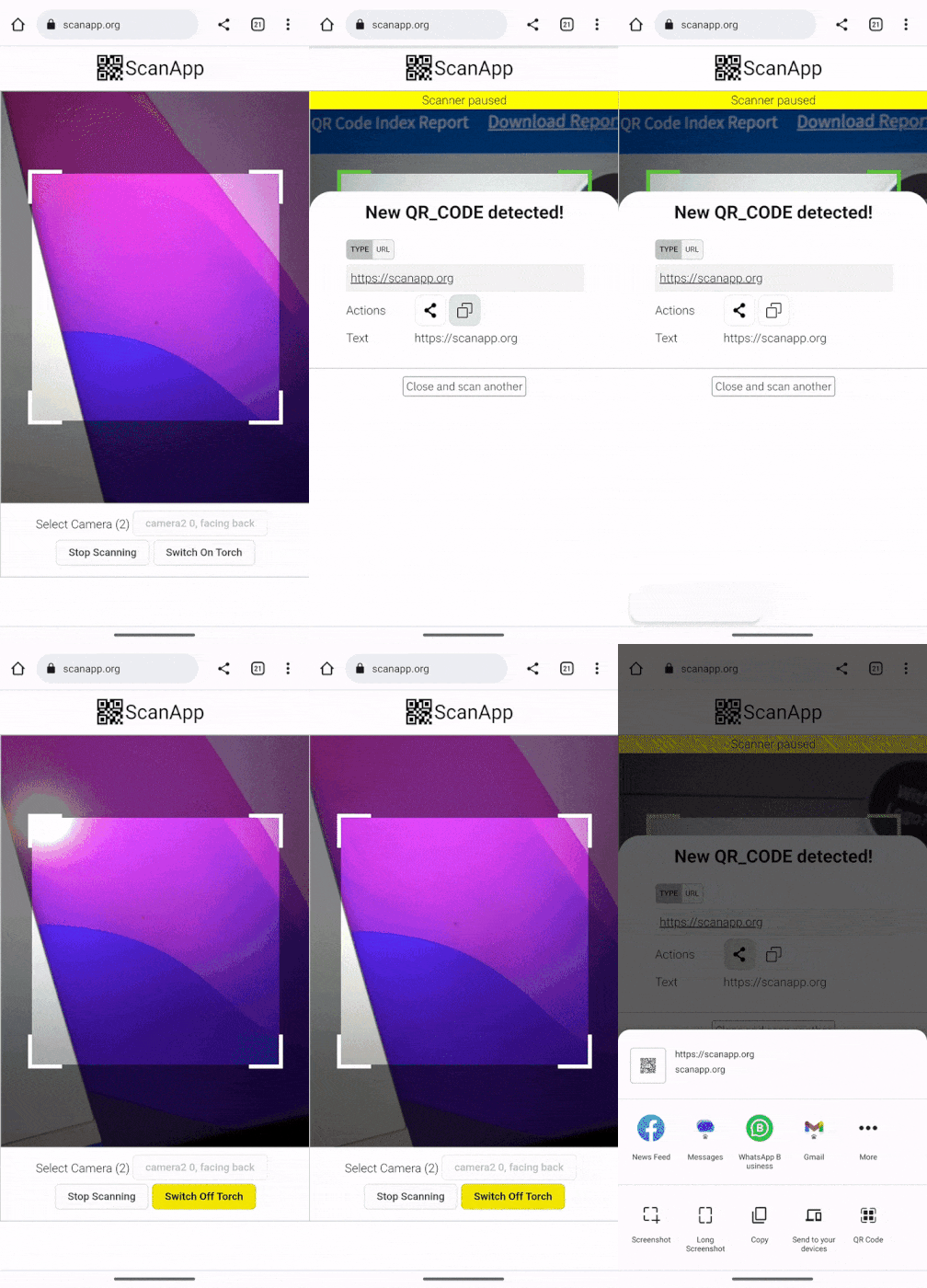
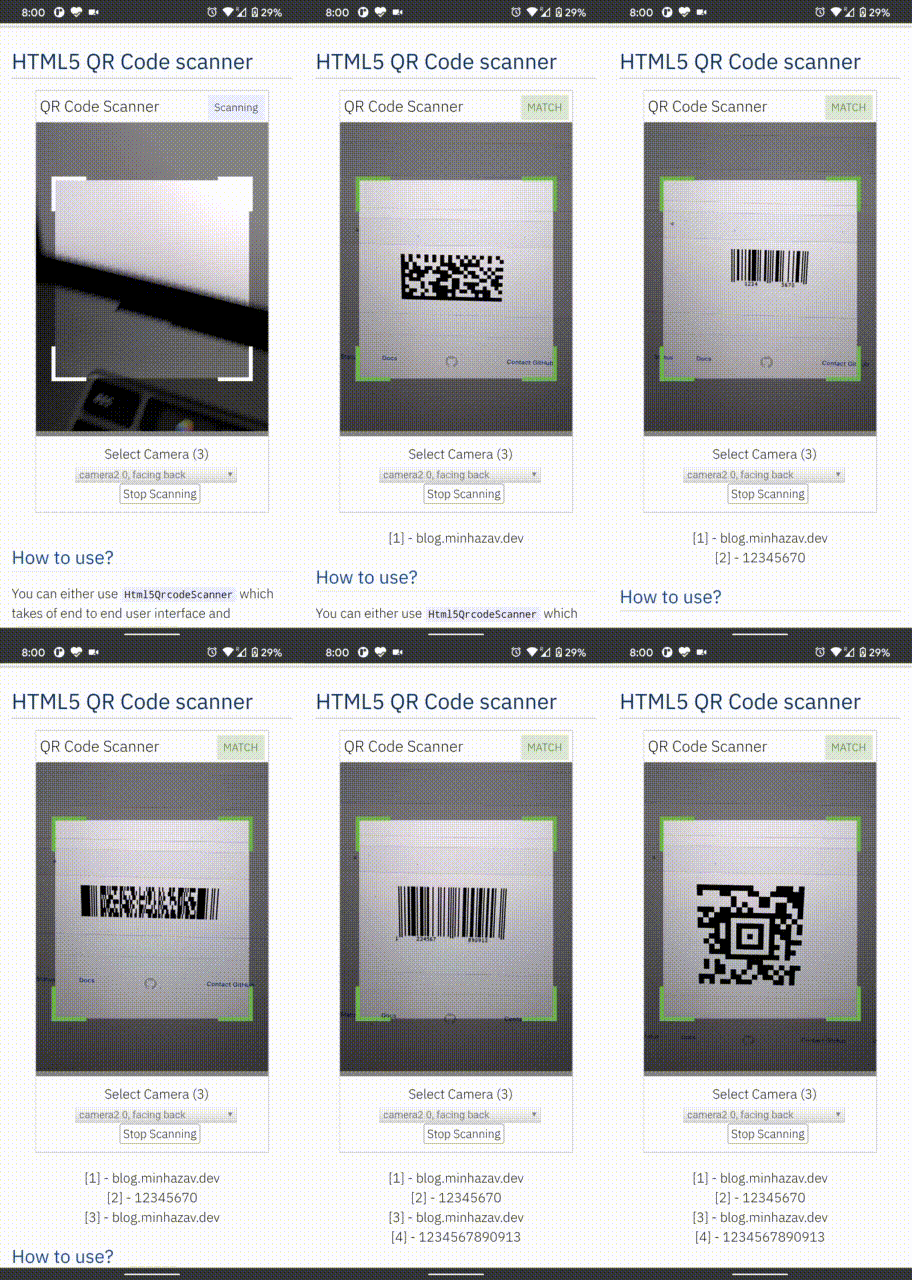
| Demo at scanapp.org | Demo at qrcode.minhazav.dev - Scanning different types of codes |
We need your help!
 Help incentivise feature development, bug fixing by supporting the sponsorhip goals of this project. See list of sponsered feature requests here.

Documentation
The documentation for this project has been moved to scanapp.org/html5-qrcode-docs.
Supported platforms
We are working continuously on adding support for more and more platforms. If you find a platform or a browser where the library is not working, please feel free to file an issue. Check the demo link to test it out.
Legends
 Means full support — inline webcam and file based
 Means partial support — only file based, webcam in progress
PC / Mac
 Firefox |  Chrome |  Safari |  Opera |  Edge |
|---|---|---|---|---|
| | | | |
Android
Chrome | Firefox | Edge | Opera |  Opera Mini |  UC |
|---|---|---|---|---|---|
| | | | | |
IOS
Safari | Chrome | Firefox | Edge |
|---|---|---|---|
| * | * | |
* Supported for IOS versions >= 15.1
Before version 15.1, Webkit for IOS is used by Chrome, Firefox, and other browsers in IOS and they do not have webcam permissions yet. There is an ongoing issue on fixing the support for iOS - issue/14
Framework support
The library can be easily used with several other frameworks, I have been adding examples for a few of them and would continue to add more.
 |  |  |  |  |
|---|---|---|---|---|
| Html5 | VueJs | ElectronJs | React | Lit |
Supported Code formats
Code scanning is dependent on Zxing-js library. We will be working on top of it to add support for more types of code scanning. If you feel a certain type of code would be helpful to have, please file a feature request.
| Code | Example |
|---|---|
| QR Code | 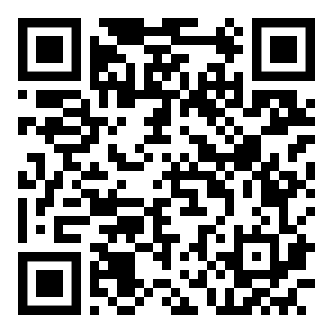 |
| AZTEC | 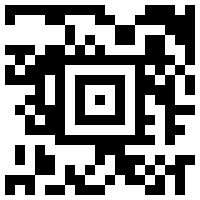 |
| CODE_39 | 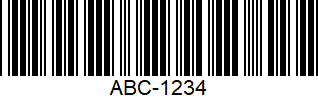 |
| CODE_93 | 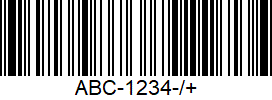 |
| CODE_128 | 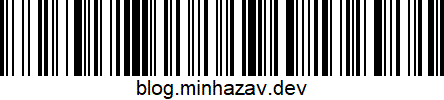 |
| ITF | 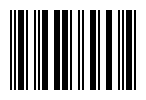 |
| EAN_13 | 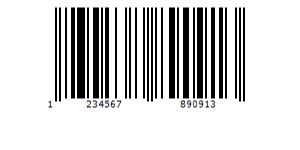 |
| EAN_8 | 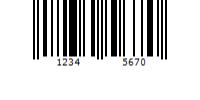 |
| PDF_417 | 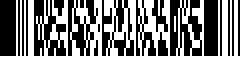 |
| UPC_A | 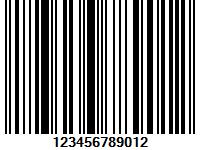 |
| UPC_E | 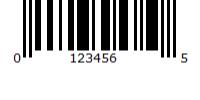 |
| DATA_MATRIX | 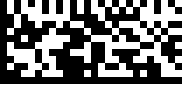 |
| MAXICODE* |  |
| RSS_14* | 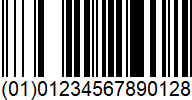 |
| RSS_EXPANDED* |  |
*Formats are not supported by our experimental integration with native BarcodeDetector API integration (Read more).
Description - View Demo
See an end to end scanner experience at scanapp.org.
This is a cross-platform JavaScript library to integrate QR code, bar codes & a few other types of code scanning capabilities to your applications running on HTML5 compatible browser.
Supports:
- Querying camera on the device (with user permissions)
- Rendering live camera feed, with easy to use user interface for scanning
- Supports scanning a different kind of QR codes, bar codes and other formats
- Supports selecting image files from the device for scanning codes
How to use
Find detailed guidelines on how to use this library on scanapp.org/html5-qrcode-docs.
Demo
Scan this image or visit blog.minhazav.dev/research/html5-qrcode.html
For more information
Check these articles on how to use this library:
- QR and barcode scanner using HTML and JavaScript
- HTML5 QR Code scanning — launched v1.0.1 without jQuery dependency and refactored Promise based APIs.
- HTML5 QR Code scanning with JavaScript — Support for scanning the local file and using default camera added (v1.0.5)
Screenshots
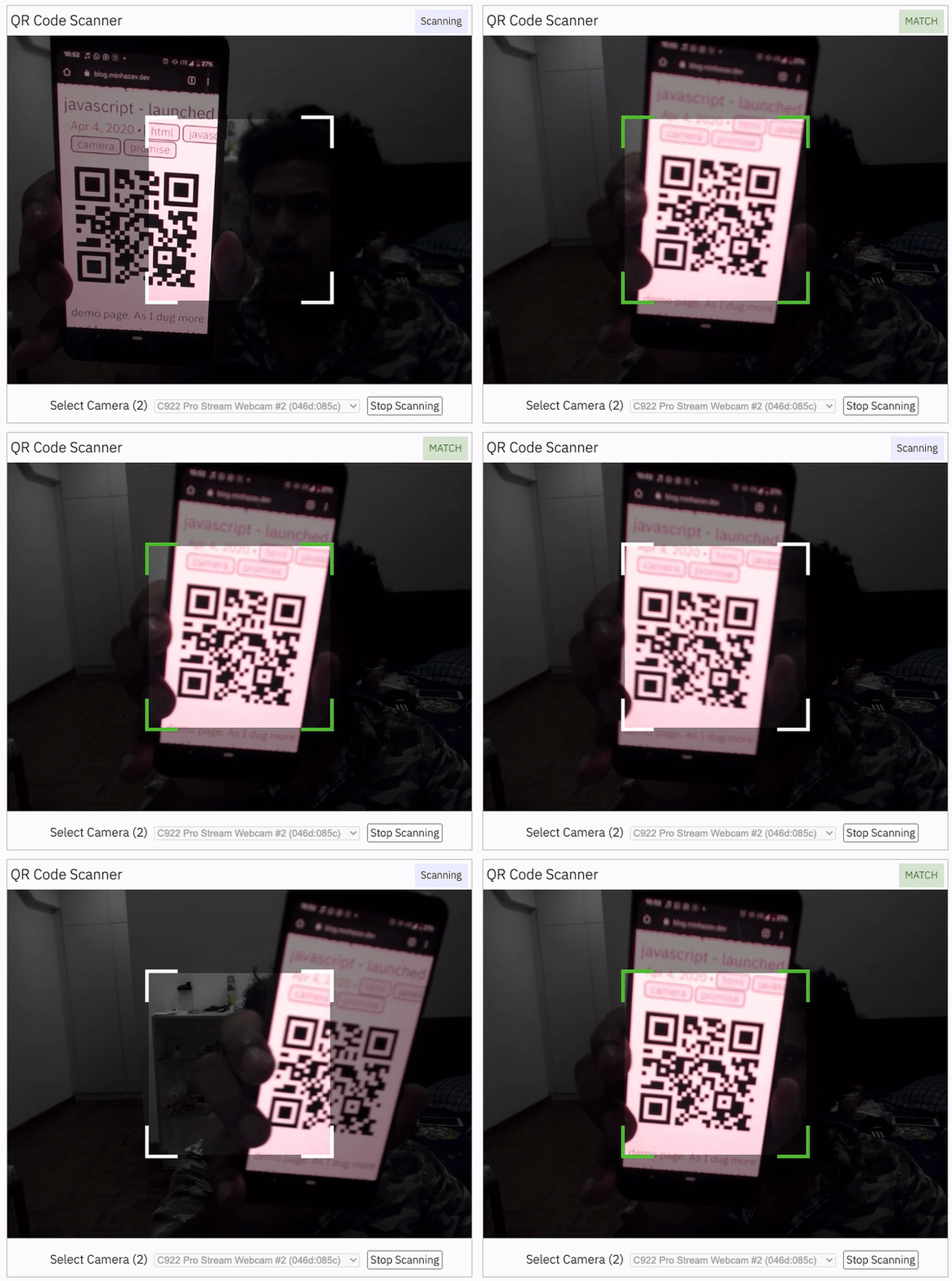
Figure: Screenshot from Google Chrome running on MacBook Pro
Documentation
Find the full API documentation at scanapp.org/html5-qrcode-docs/docs/apis.
Extra optional configuration in start() method
Configuration object that can be used to configure both the scanning behavior and the user interface (UI). Most of the fields have default properties that will be used unless a different value is provided. If you do not want to override anything, you can just pass in an empty object {}.
fps — Integer, Example = 10
A.K.A frame per second, the default value for this is 2, but it can be increased to get faster scanning. Increasing too high value could affect performance. Value >1000 will simply fail.
qrbox — QrDimensions or QrDimensionFunction (Optional), Example = { width: 250, height: 250 }
Use this property to limit the region of the viewfinder you want to use for scanning. The rest of the viewfinder would be shaded. For example, by passing config { qrbox : { width: 250, height: 250 } }, the screen will look like:
This can be used to set a rectangular scanning area with config like:
let config = { qrbox : { width: 400, height: 150 } }
This config also accepts a function of type
/**
  * A function that takes in the width and height of the video stream
* and returns QrDimensions.
*
* Viewfinder refers to the video showing camera stream.
*/
type QrDimensionFunction =
    (viewfinderWidth: number, viewfinderHeight: number) => QrDimensions;
This allows you to set dynamic QR box dimensions based on the video dimensions. See this blog article for example: Setting dynamic QR box size in Html5-qrcode - ScanApp blog
This might be desirable for bar code scanning.
If this value is not set, no shaded QR box will be rendered and the scanner will scan the entire area of video stream.
aspectRatio — Float, Example 1.777778 for 16:9 aspect ratio
Use this property to render the video feed in a certain aspect ratio. Passing a nonstandard aspect ratio like 100000:1 could lead to the video feed not even showing up. Ideal values can be:
| Value | Aspect Ratio | Use Case |
|---|---|---|
| 1.333334 | 4:3 | Standard camera aspect ratio |
| 1.777778 | 16:9 | Full screen, cinematic |
| 1.0 | 1:1 | Square view |
If you do not pass any value, the whole viewfinder would be used for scanning.
Note: this value has to be smaller than the width and height of the QR code HTML element.
disableFlip — Boolean (Optional), default = false
By default, the scanner can scan for horizontally flipped QR Codes. This also enables scanning QR code using the front camera on mobile devices which are sometimes mirrored. This is false by default and I recommend changing this only if:
- You are sure that the camera feed cannot be mirrored (Horizontally flipped)
- You are facing performance issues with this enabled.
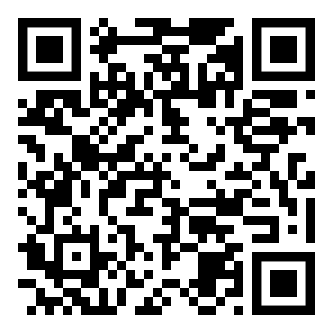
Here's an example of a normal and mirrored QR Code
| Normal QR Code | Mirrored QR Code |
|---|---|
|  |
rememberLastUsedCamera — Boolean (Optional), default = true
If true the last camera used by the user and weather or not permission was granted would be remembered in the local storage. If the user has previously granted permissions — the request permission option in the UI will be skipped and the last selected camera would be launched automatically for scanning.
If true the library shall remember if the camera permissions were previously
granted and what camera was last used. If the permissions is already granted for
"camera", QR code scanning will automatically * start for previously used camera.
supportedScanTypes - Array<Html5QrcodeScanType> | []
This is only supported for
Html5QrcodeScanner.
Default = [Html5QrcodeScanType.SCAN_TYPE_CAMERA, Html5QrcodeScanType.SCAN_TYPE_FILE]
This field can be used to:
- Limit support to either of
CameraorFilebased scan. - Change default scan type.
How to use:
function onScanSuccess(decodedText, decodedResult) {
  // handle the scanned code as you like, for example:
  console.log(`Code matched = ${decodedText}`, decodedResult);
}

let config = {
  fps: 10,
  qrbox: {width: 100, height: 100},
  rememberLastUsedCamera: true,
  // Only support camera scan type.
  supportedScanTypes: [Html5QrcodeScanType.SCAN_TYPE_CAMERA]
};

let html5QrcodeScanner = new Html5QrcodeScanner(
  "reader", config, /* verbose= */ false);
html5QrcodeScanner.render(onScanSuccess);
For file based scan only choose:
supportedScanTypes: [Html5QrcodeScanType.SCAN_TYPE_FILE]
For supporting both as it is today, you can ignore this field or set as:
supportedScanTypes: [
  Html5QrcodeScanType.SCAN_TYPE_CAMERA,
  Html5QrcodeScanType.SCAN_TYPE_FILE]
To set the file based scan as defult change the order:
supportedScanTypes: [
  Html5QrcodeScanType.SCAN_TYPE_FILE,
  Html5QrcodeScanType.SCAN_TYPE_CAMERA]
showTorchButtonIfSupported - boolean | undefined
This is only supported for
Html5QrcodeScanner.
If true the rendered UI will have button to turn flash on or off based on device + browser support. The value is false by default.
Scanning only specific formats
By default, both camera stream and image files are scanned against all the
supported code formats. Both Html5QrcodeScanner and Html5Qrcode classes can
be configured to only support a subset of supported formats. Supported formats
are defined in
enum Html5QrcodeSupportedFormats.
enum Html5QrcodeSupportedFormats {
  QR_CODE = 0,
  AZTEC,
  CODABAR,
  CODE_39,
  CODE_93,
  CODE_128,
  DATA_MATRIX,
  MAXICODE,
  ITF,
  EAN_13,
  EAN_8,
  PDF_417,
  RSS_14,
  RSS_EXPANDED,
  UPC_A,
  UPC_E,
  UPC_EAN_EXTENSION,
}
I recommend using this only if you need to explicitly omit support for certain formats or want to reduce the number of scans done per second for performance reasons.
Scanning only QR code with Html5Qrcode
const html5QrCode = new Html5Qrcode(
  "reader", { formatsToSupport: [ Html5QrcodeSupportedFormats.QR_CODE ] });
const qrCodeSuccessCallback = (decodedText, decodedResult) => {
    /* handle success */
};
const config = { fps: 10, qrbox: { width: 250, height: 250 } };

// If you want to prefer front camera
html5QrCode.start({ facingMode: "user" }, config, qrCodeSuccessCallback);
Scanning only QR code and UPC codes with Html5QrcodeScanner
function onScanSuccess(decodedText, decodedResult) {
  // Handle the scanned code as you like, for example:
  console.log(`Code matched = ${decodedText}`, decodedResult);
}

const formatsToSupport = [
  Html5QrcodeSupportedFormats.QR_CODE,
  Html5QrcodeSupportedFormats.UPC_A,
  Html5QrcodeSupportedFormats.UPC_E,
  Html5QrcodeSupportedFormats.UPC_EAN_EXTENSION,
];
const html5QrcodeScanner = new Html5QrcodeScanner(
  "reader",
  {
    fps: 10,
    qrbox: { width: 250, height: 250 },
    formatsToSupport: formatsToSupport
  },
  /* verbose= */ false);
html5QrcodeScanner.render(onScanSuccess);
Experimental features
The library now supports some experimental features which are supported in the library but not recommended for production usage either due to limited testing done or limited compatibility for underlying APIs used. Read more about it here. Some experimental features include:
How to modify and build
-
Code changes should only be made to /src only.
-
Run
npm installto install all dependencies. -
Run
npm run-script buildto build JavaScript output. The output JavaScript distribution is built to /dist/html5-qrcode.min.js. If you are developing on Windows OS, runnpm run-script build-windows. -
Testing
- Run
npm test - Run the tests before sending a pull request, all tests should run.
- Please add tests for new behaviors sent in PR.
- Run
-
Send a pull request
- Include code changes only to
./src. Do not change./distmanually. - In the pull request add a comment like
@all-contributors please add @mebjas for this new feature or tests- For calling out your contributions, the bot will update the contributions file.
- Code will be built & published by the author in batches.
- Include code changes only to
How to contribute
You can contribute to the project in several ways:
- File issue ticket for any observed bug or compatibility issue with the project.
- File feature request for missing features.
- Take open bugs or feature request and work on it and send a Pull Request.
- Write unit tests for existing codebase (which is not covered by tests today). Help wanted on this - read more.
Support 💖
This project would not be possible without all of our fantastic contributors and sponsors. If you'd like to support the maintenance and upkeep of this project you can donate via GitHub Sponsors.
Sponsor the project for priortising feature requests / bugs relevant to you. (Depends on scope of ask and bandwidth of the contributors).



Help incentivise feature development, bug fixing by supporting the sponsorhip goals of this project. See list of sponsered feature requests here.
Also, huge thanks to following organizations for non monitery sponsorships


Credits
The decoder used for the QR code reading is from Zxing-js https://github.com/zxing-js/library